
Checklist
Tick off the lesson together
Write the points (what to get through, the lesson’s goals or what to bring) and tick them off on the board as they are done. The counter and bar show how far you have come.
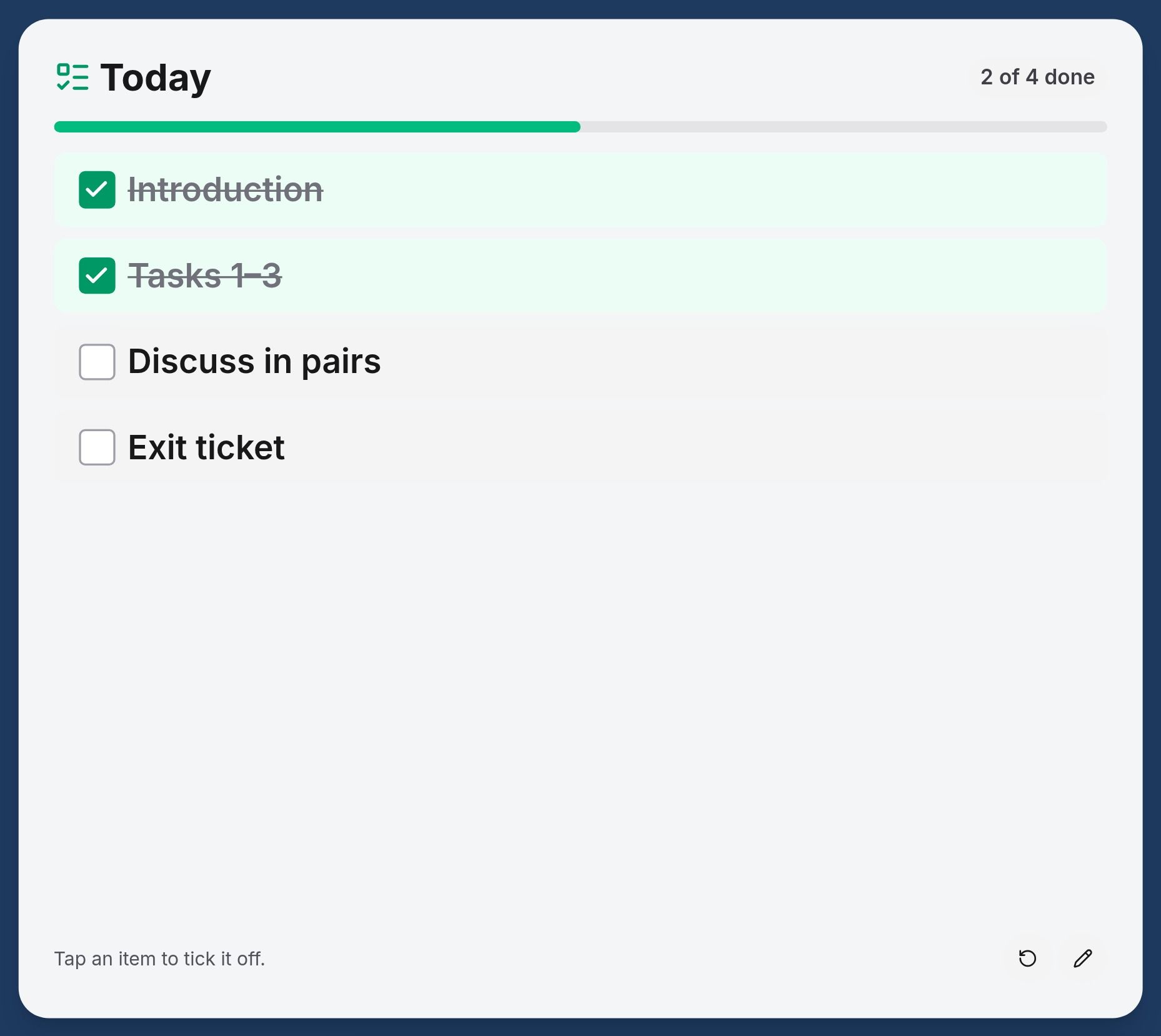
Points, big on the board
A heading and up to thirty points, readable from the back row. Tap a point to tick it off, tap again if it was a mistake.
How far have we come?
“3 of 5 done” and a bar that fills up. When everything is ticked, the board says All done!
Reuse it next time
Ticks are saved with the lesson. Start over clears the list when the next class comes in or the lesson runs again.
On students’ screens too
Students see the list and what is ticked on their own device, but you are the one who ticks.
Ways to use it
- Write the lesson’s goals as points and tick them off together towards the end.
- A packing list for the trip or PE: students see for themselves what is left.
- The steps of an experiment: the next step is clear once the last one is ticked.
How to get started
- Add Checklist and write the points, one per line (Enter gives the next).
- Press Done.
- Tick off the points on the board during the lesson.
Everything is on the same board: lesson schedule, timer, mini whiteboards and the other tools. No student accounts, and boards and images are stored in Sweden, under GDPR.
Questions
Can students tick items themselves?
No, only the teacher ticks. Students see the list and the class’s progress on their own screens.
How is it different from the lesson schedule?
The lesson schedule follows the clock and lights up the current step by itself. The checklist is free of time: you tick when something is done.
Missing something? We build what teachers ask for.
Tell us what you miss on the board or what is awkward. We read everything and reply.
Used in the lesson together with
- Lesson scheduleShow the steps of the lesson on the board. The schedule follows the clock, highlights the current step and tells you if the lesson runs too long.
- Now / nextA large strip showing what is happening now and what comes next, straight from the lesson schedule.
- NoteWrite instructions, today's goal or a task on a note, or a big welcome line with Text box. Bold, italic, text size, colours and mathematical symbols.
Plan the whole lesson on the same board
Put the tool where it belongs in the lesson, next to the lesson schedule and the timer. The next lesson in the series is one click away.