
Mini whiteboards
Digital mini whiteboards: everyone draws, you see it all
Like mini whiteboards, but on the school's tablets and computers. Ask a question, let everyone draw an answer and see the whole class's thinking at once.
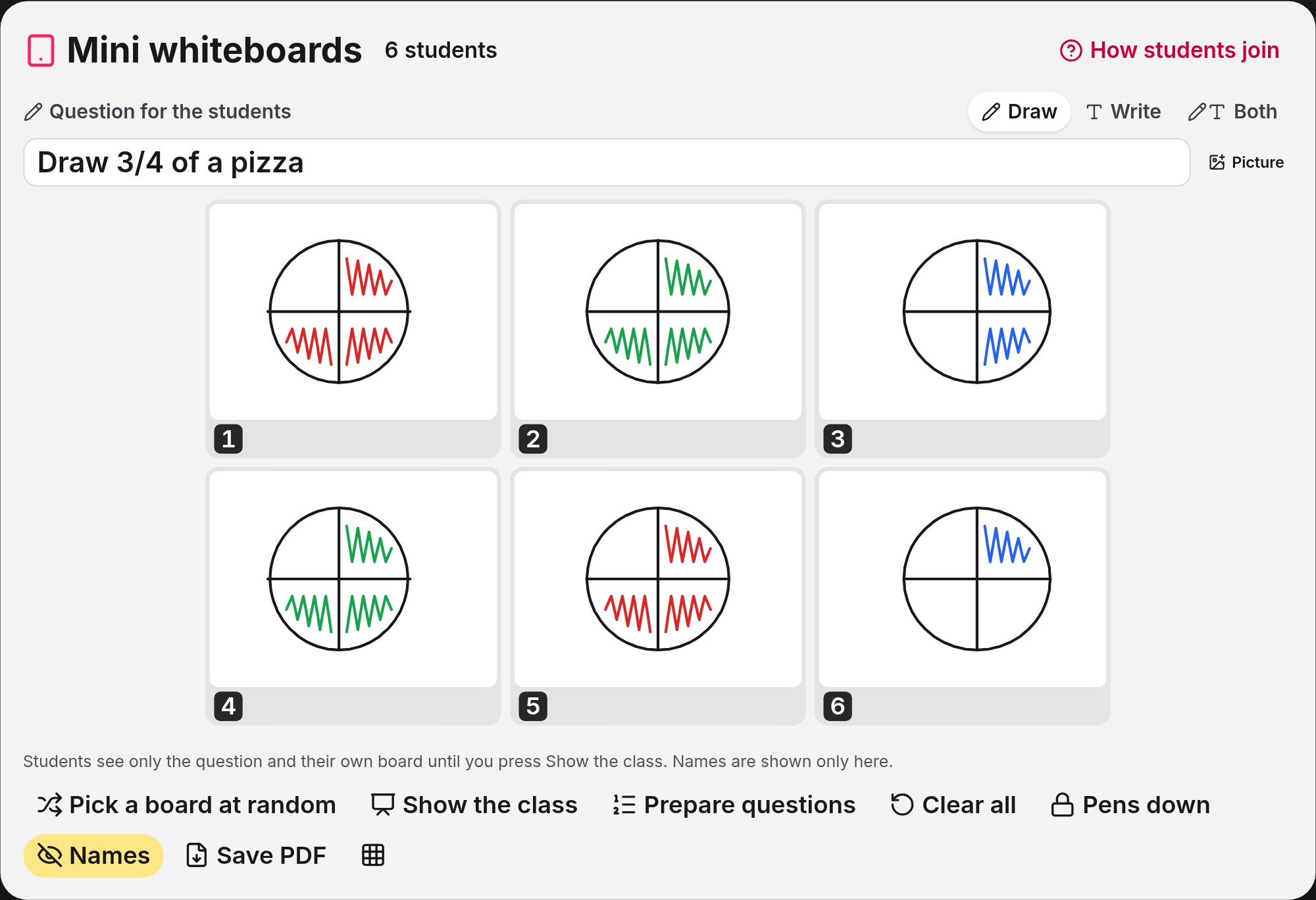
Everyone answers, not just the hands up
Each student draws on their own board and you see every answer at the same time in a grid. You see right away who has understood and who needs help, without anyone answering in front of the class.
Names for you, numbers for the class
Students type their name or desk when they join. The name is only on your screen. The projector and the students' own screens show just a number, so every student recognises their answer without the class seeing whose it is.
You choose when the class sees the answers
Nobody sees anyone else's answer until you want them to. Students see only the question and their own board, so nobody sits waiting to look at someone else's. When everyone has answered, press Show the class and pick one answer, a few or all of them. They appear on the students' screens and on the projector in the order you picked, so you can compare two solutions side by side. Hide takes them away again, and picking a board at random keeps it fair.
Draw or write, with questions prepared beforehand
For each question, choose whether students draw or type their answer with the keyboard, longer texts too, or both on the same board. Prepare the questions before the lesson and click through them: every question gives clean boards. You can change, add and remove questions in the middle of the lesson, and add a picture to each question. If a student pastes text into a typed answer, just that part turns yellow, only on your screen. Choose No pasting if students should write everything themselves.
Pens down and Clear all
With Pens down students cannot draw until you release them, and they see "look at the teacher". Clear all empties every board. Write a task for students and choose white, squared, lined or dotted paper, writing lines or music staves for writing notes.
Drawings are deleted after the lesson
Students' drawings and what they type are deleted with a new question or when you stop sharing, and after a day at the latest. Students need no accounts.
Ways to use it
- Start the lesson with a question about the last one. In a minute you see who remembers.
- Ask everyone to draw a number line, a fraction or a shape, and show one answer large, without a name, to discuss.
- Use Pens down when you need everyone’s attention before the next task.
How to get started
- Press Start mini whiteboards on the start page (or go to pekpinne.se/elevtavlor). The board and the code are ready.
- Students go to app.pekpinne.se/k and type the code from the board. They can add the page to their home screen, so it opens with one tap next time.
- Write a task, choose Draw or Write and watch the answers come in. You can prepare the questions beforehand.
Everything is on the same board: lesson schedule, timer, mini whiteboards and the other tools. No student accounts, and boards and images are stored in Sweden, under GDPR.
Questions
Which devices work?
Tablets, computers and Chromebooks with a browser. Students draw with a finger, a pen or the mouse. No phones needed.
Do students need to sign in?
No. Students type the six-digit code from the board. No student accounts needed, and what students send is deleted after a day at the latest.
Can I save students' answers?
No, on purpose. The drawings are deleted when you stop sharing and after a day at the latest, so no student work stays with us.
Missing something? We build what teachers ask for.
Tell us what you miss on the board or what is awkward. We read everything and reply.
Used in the lesson together with
- Times-table testTimes-table tests without paper: students answer on a tablet or computer, everything is scored at once and you see the hardest facts for the class.
- Help queueA digital help queue for the classroom. Students raise a hand from their computer or tablet and see their place. You tick them off on the board.
- Name picker and groupsPick who answers and split the class into groups in one click. Student names can only be read on your devices.
Plan the whole lesson on the same board
Put the tool where it belongs in the lesson, next to the lesson schedule and the timer. The next lesson in the series is one click away.