
Planning with your timetable
Do you know what your next lesson is before you walk into the classroom?
Connect your timetable to Pekpinne. You see today’s lessons on the start page, the right board opens in one click and you find out the day before if something isn’t planned.
Your timetable, the way that suits you
The timetable is saved on your account and comes with you to all your computers and your phone.
- Calendar link: paste the link from the school timetable. It updates by itself when the timetable changes.
- Calendar file: import an .ics file you saved from the timetable.
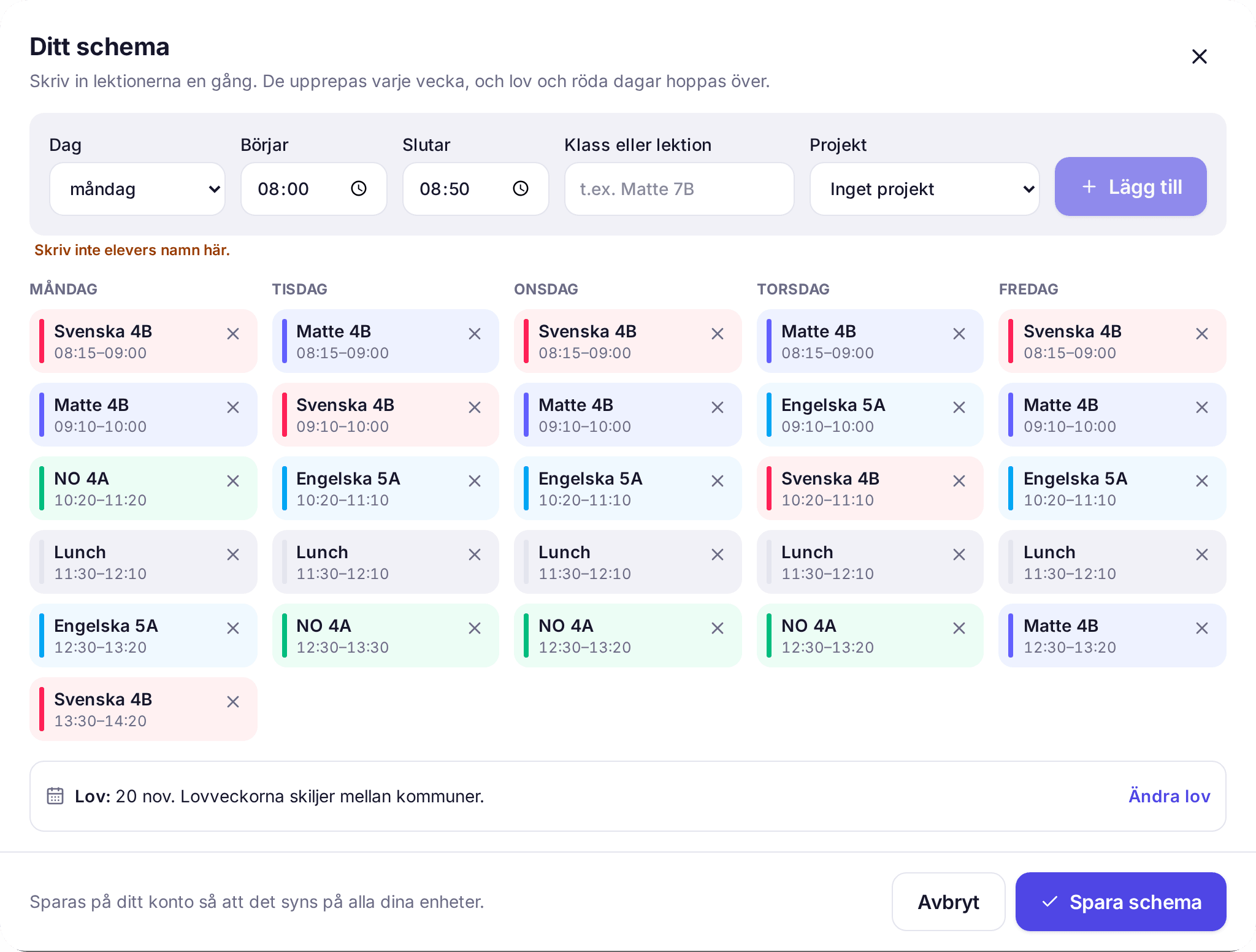
- Your own timetable: type in day, time and class once. It repeats every week, and holidays are skipped.
Today and tomorrow on the start page
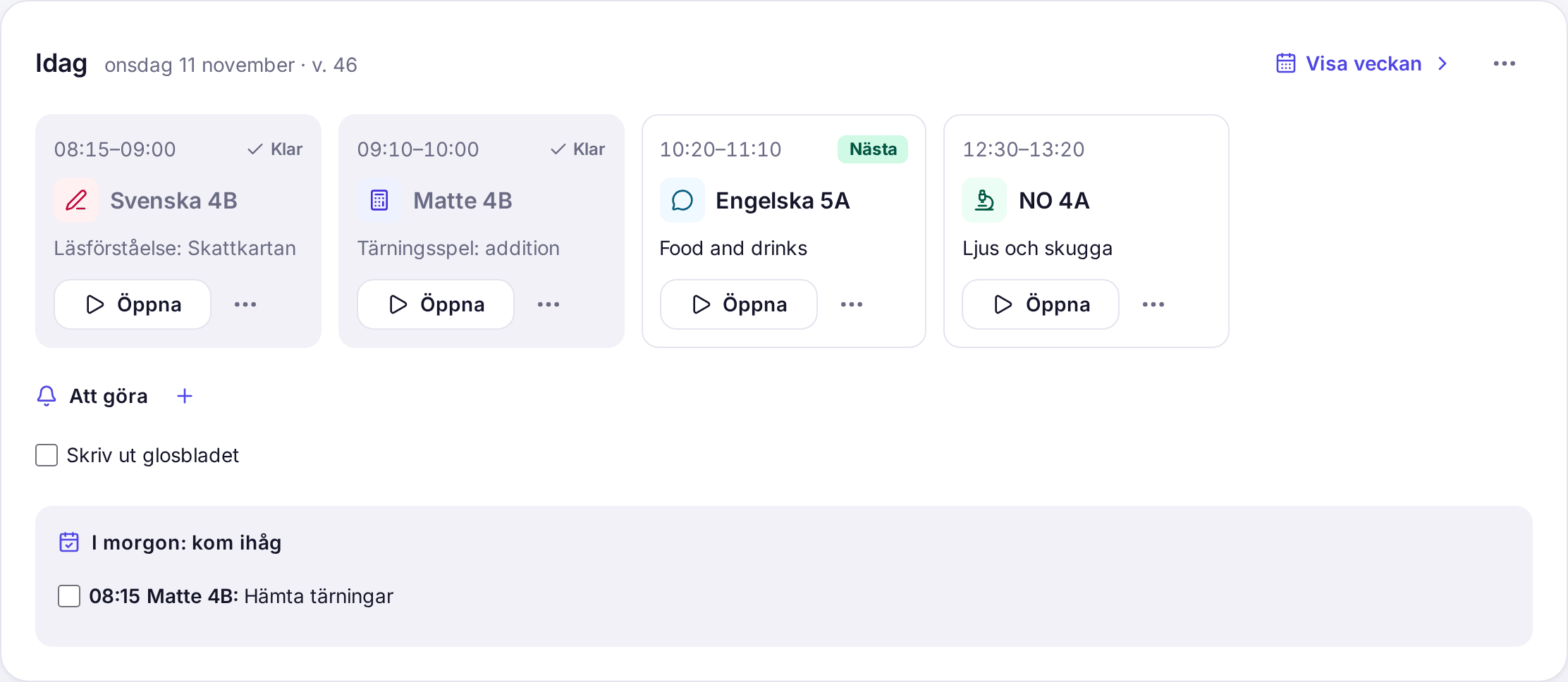
When you open Pekpinne you see today’s lessons in the Today box, with a suggestion for which lesson to open.
- The suggestion is the next lesson in the project the class is linked to. One click and the board is up.
- If a lesson tomorrow has no plan yet, you see it today, for example “Tomorrow: 2 lessons not planned”.
- Reminders with a box to tick show in Today. Add a reminder to a lesson and it shows up the day before.
Plan several weeks at once
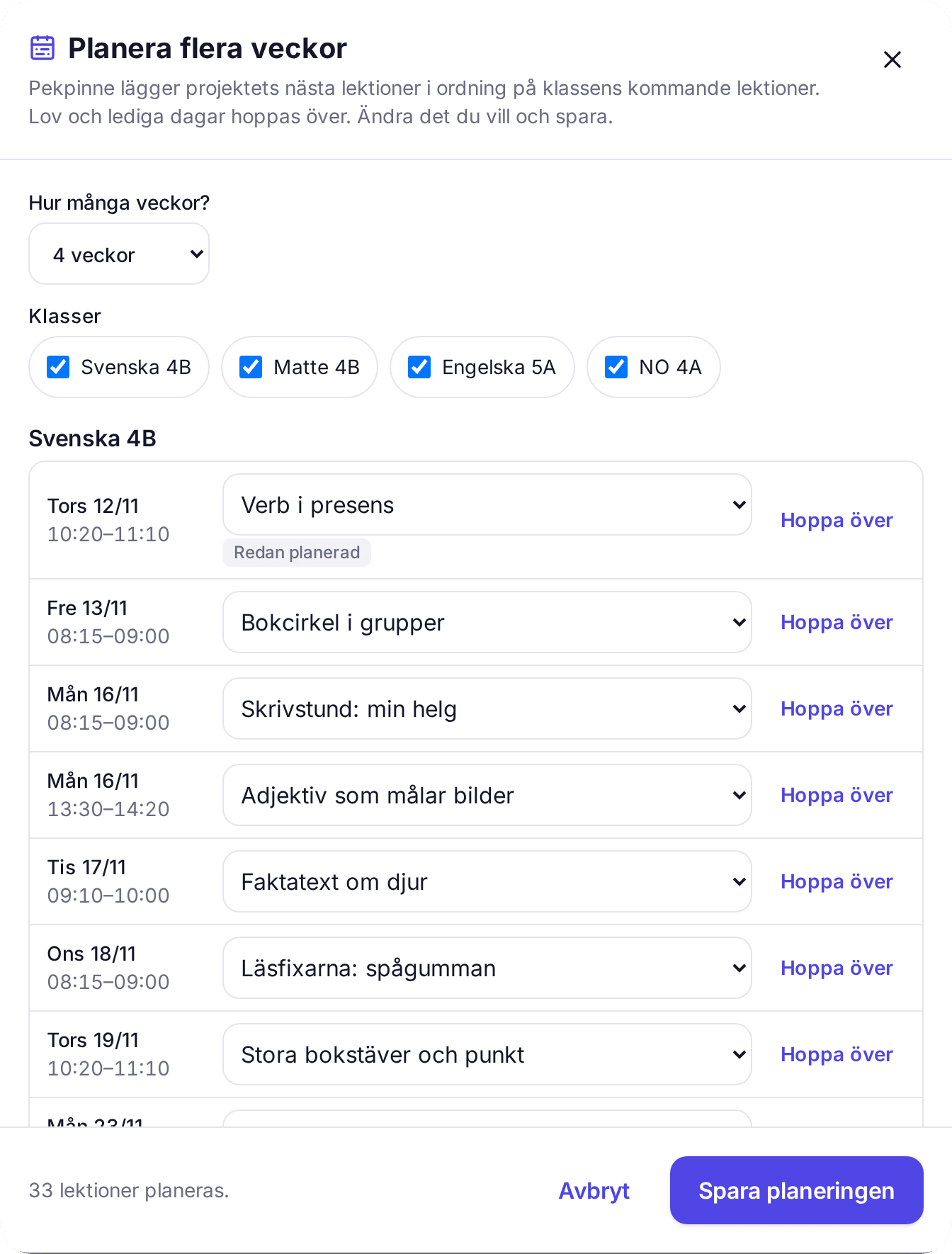
Link the class to a project. Plan several weeks puts the project’s next lessons in order on the class’s coming lessons.
- Holidays and days off are skipped.
- You see the whole list before anything is saved and change what you like.
- Choose what the link covers: “Just this one”, “All Tuesdays 10:15” or “All lessons with 7B”.
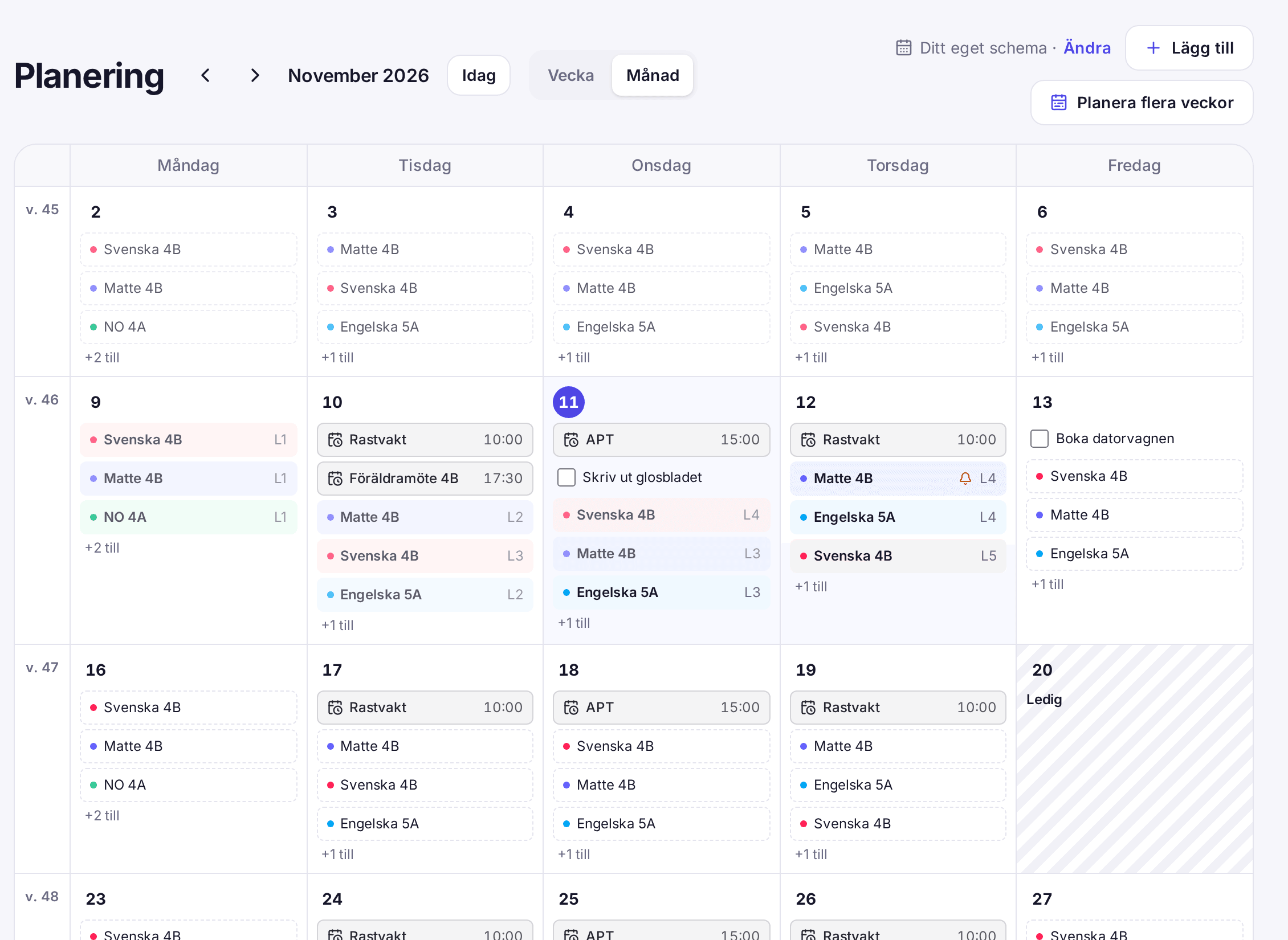
The week and the month under Planning
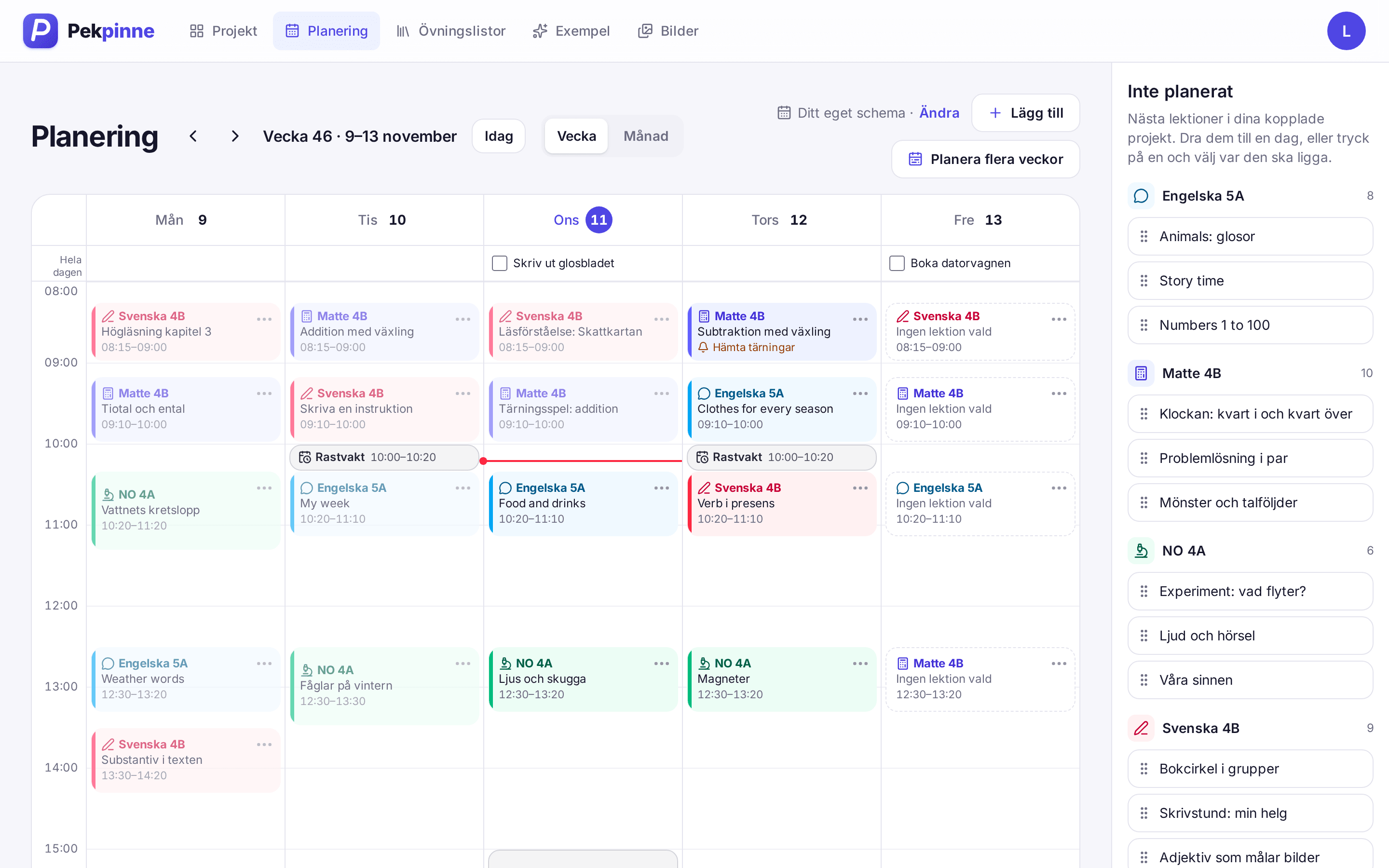
See the whole week with a line showing where in the day you are, or the whole month at once.
- Not planned shows your projects’ next lessons. Drag them to the right day.
- If a day is cancelled, mark it as a day off. Push the rest on moves the lesson and the ones after it on by one lesson each.
- Add your own events such as meetings and break duty. They show in grey so they don’t get mixed up with lessons.
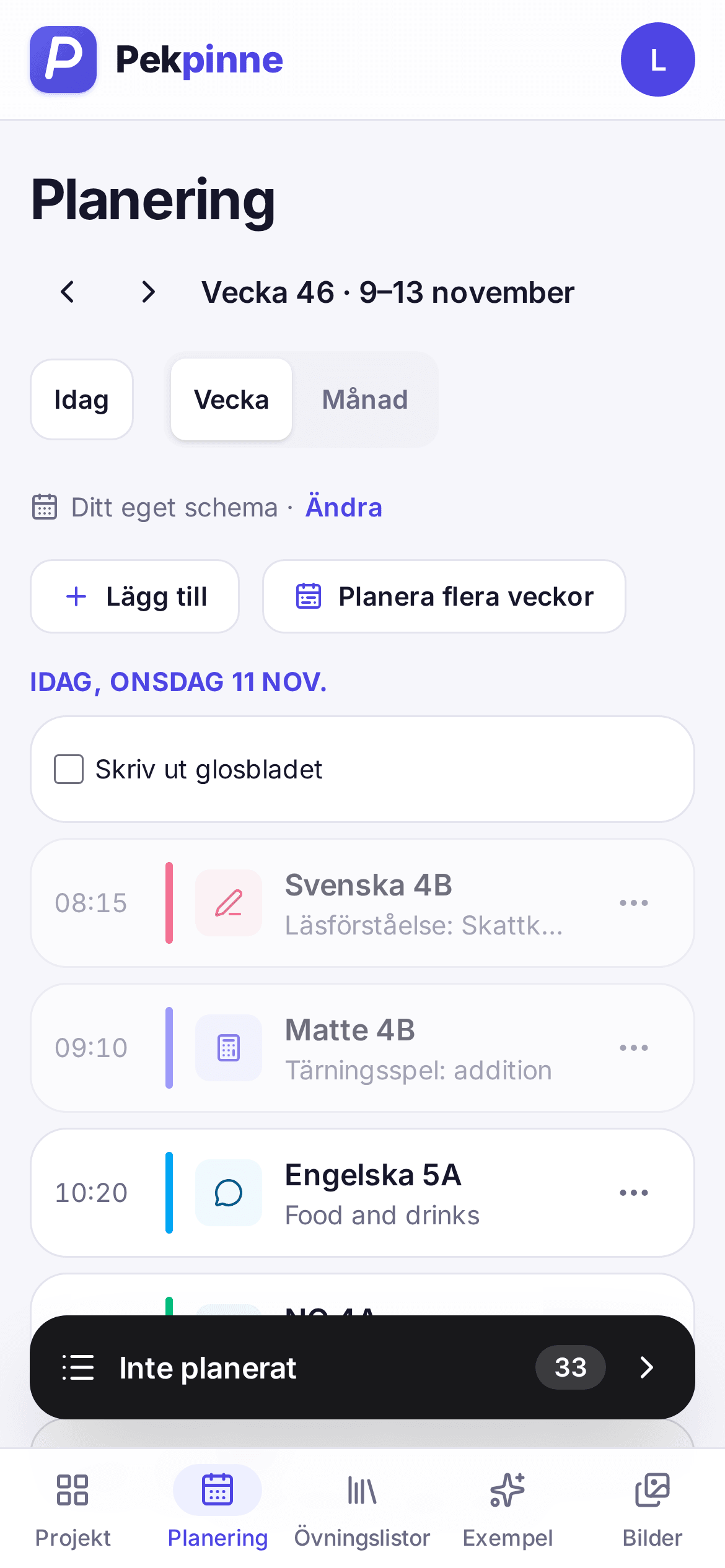
On your phone the week becomes a list, day by day.
Only you see the timetable. It never shows on the board, in the projector window or on students’ screens. Write class and subject, no student names. The link to your calendar is stored encrypted on your account.
Connect your timetable
Create an account and go to Planning. There you connect the calendar link, import a file or type in the timetable yourself.
Try Pekpinne for real
The demo opens right in your browser. No account needed.