
Help queue · raise your hand digitally
A digital help queue: nobody sits with their hand up
Students join the queue from their computer or tablet and keep working while they wait. The board shows you who is next, and you help them in turn.
Raise your hand digitally
The student types a desk or group and chooses I need help or I want to show. Then the student sees their place in the queue, and when it is their turn it says You’re next! If it sorts itself out, the student can leave the queue.
You see the queue on the board
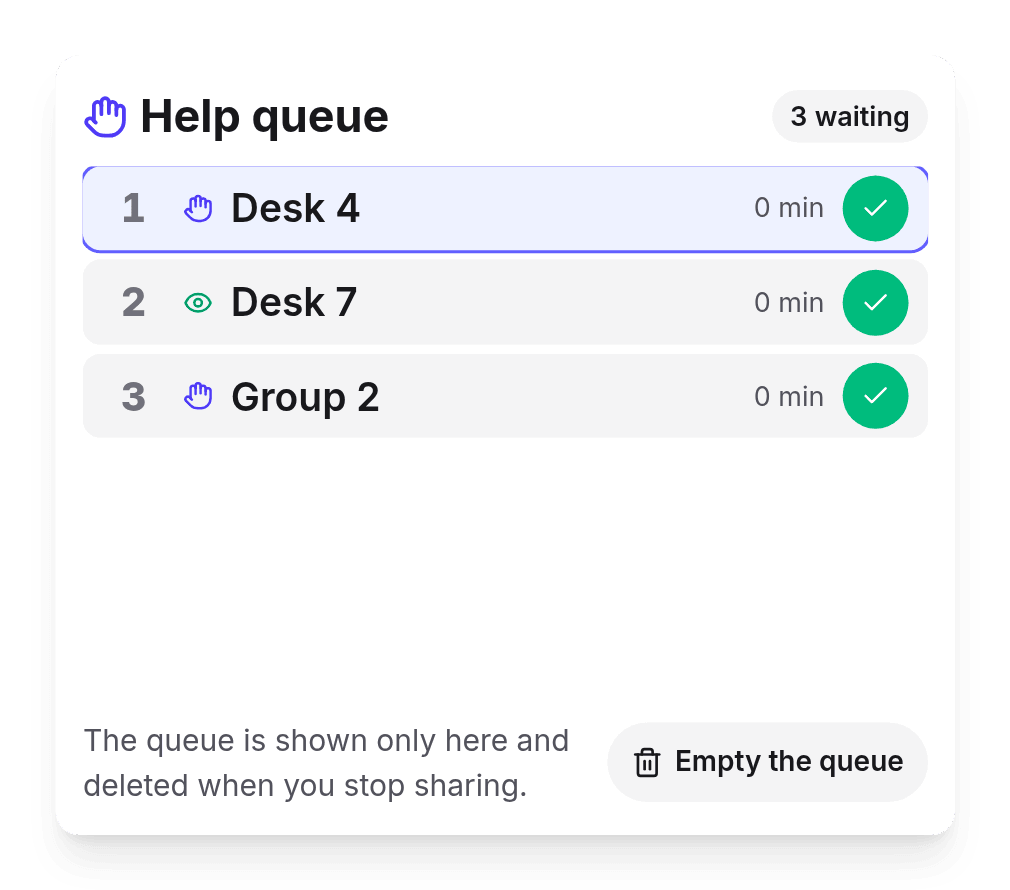
The help queue shows who is next, whether the student needs help or wants to show something, and how long they have waited. Tap the tick when you have helped someone and the queue moves on. Empty the queue in one tap.
The help queue on your phone
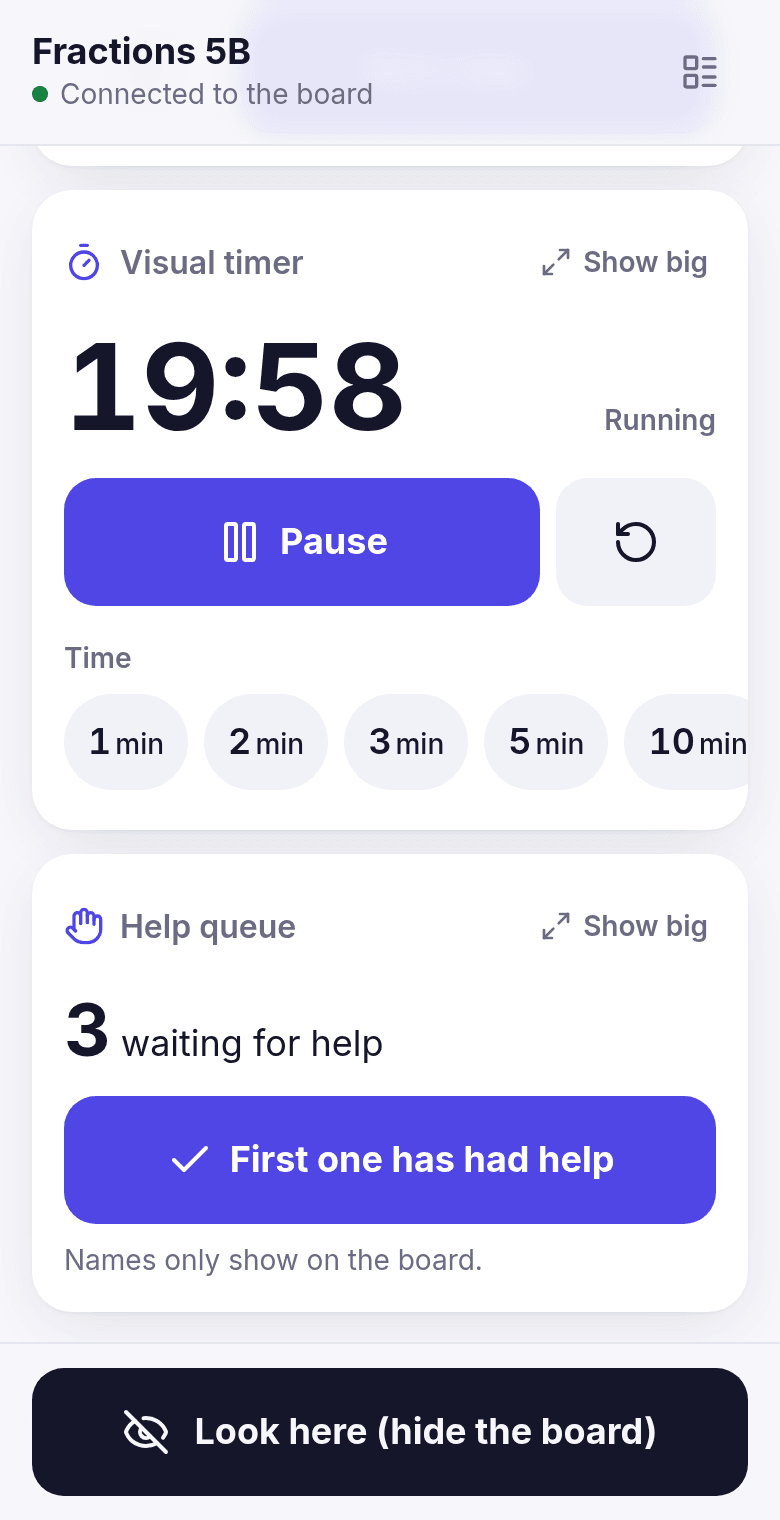
With Control from your phone you take the queue with you as you walk around the room. The phone shows how many are waiting, and when you are done with a student you tap First one has had help. Who is in the queue only shows on the board, never on the phone.
Desk numbers instead of names
Students preferably type a desk number or group, not their full name. Each student sees only their own place, not who else is in the queue. The queue is deleted when you stop sharing.
No phones for students
Students use the school's computers or tablets: they go to app.pekpinne.se/k and type the code from the board. It suits schools that ban phones.
Ways to use it
- Use the help queue during independent work, so you help students in turn, and they keep working while they wait.
- Keep the queue on your phone as you walk around, and tick off each student as soon as you have helped them.
- Let students choose "I want to show" when they finish, so you get to see everyone’s work.
How to get started
- Add the Help queue widget to the board.
- Press Share with students. Students go to app.pekpinne.se/k and type the code.
- Students join the queue. You tick them off on the board or on your phone.
Everything is on the same board: lesson schedule, timer, mini whiteboards and the other tools. No student accounts, and boards and images are stored in Sweden, under GDPR.
Questions
Can I tick students off from my phone?
Yes. Sign in on your phone with the same account and open Control the board in the menu. You see how many are waiting and tap First one has had help. Names only show on the board.
Can students see who else is in the queue?
No. Each student sees only their own place and how many are in the queue.
Is the queue saved?
No. The queue only exists while you share the board and is deleted when you stop sharing.
Do students need accounts?
No. They type the six-digit code from the board, without signing in.
How is it different from the exit ticket?
The help queue is for during the lesson, when someone needs help. The exit ticket is a short question at the end of the lesson. Both open with the same code.
Missing something? We build what teachers ask for.
Tell us what you miss on the board or what is awkward. We read everything and reply.
Used in the lesson together with
- Control from your phoneYour phone becomes a remote control for the board. Walk around the room and step through the lesson, start the timer, pick names, work the help queue and black out the board. No app needed.
- Exit ticketEnd the lesson with a digital exit ticket. Students answer from the school's tablets or computers, with their name or anonymously, and you see the answers at once. Download for Excel or print.
- Work modeShow how the class is working right now: alone, in pairs, in groups, whisper, silent work or hands up.
Plan the whole lesson on the same board
Put the tool where it belongs in the lesson, next to the lesson schedule and the timer. The next lesson in the series is one click away.