
Control from your phone · remote for the board
Control the board from your phone while you walk around the room
Your phone becomes a remote control for the board. Help students at their desks and tap to the next step, start the timer or black out the board, without going back to the computer.
A remote in your pocket
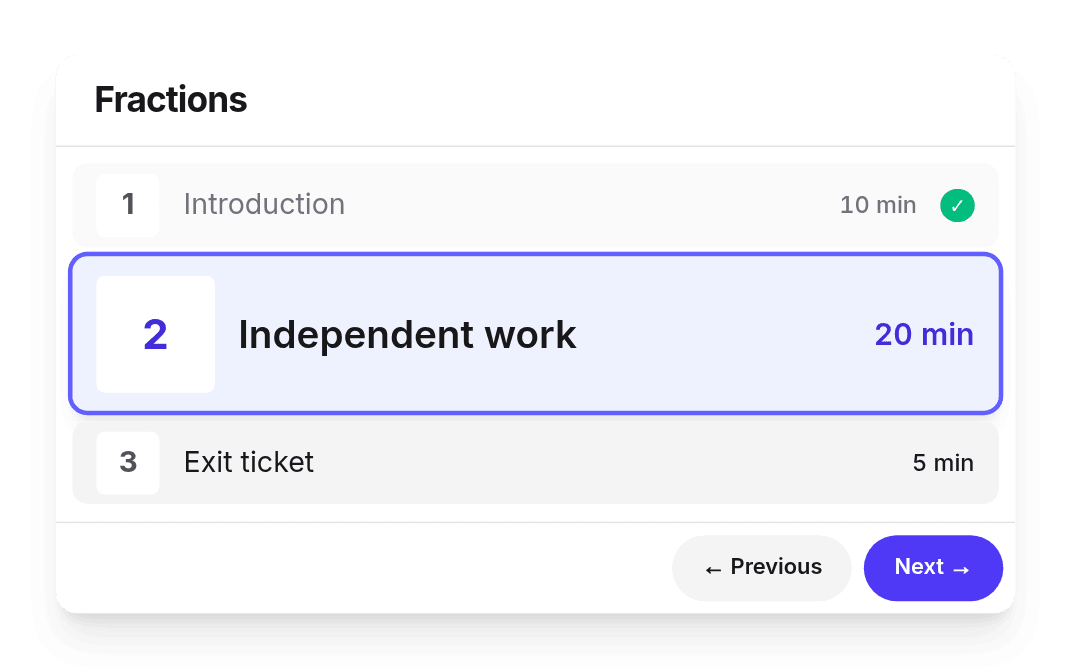
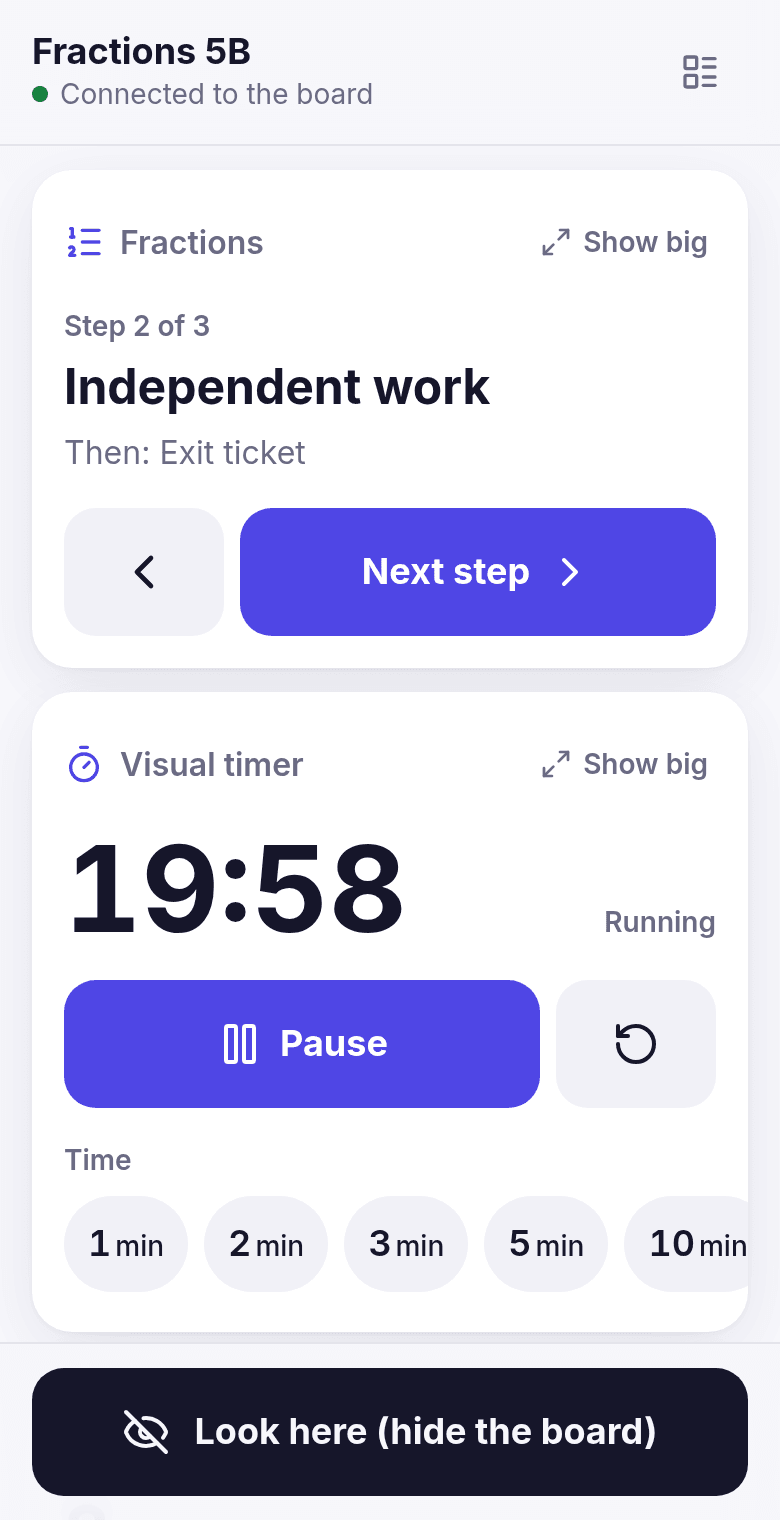
Open the lesson on the classroom computer as usual. Sign in on your phone with the same account and the board shows up there by itself. What you tap on the phone happens on the board within a second or so, and the phone shows what the class sees: the current step and how much time is left.
What you can control
Lesson schedule: start and go to the next or previous step. Visual timer: start, pause, reset and pick a new time. Pick a name, make new groups or roll the dice. Change the work mode, add a marble to the reward jar and turn on the sound meter. Show a widget big, change page and go to the next lesson in the project. Start the sound meter on the computer the first time, so the browser may use the microphone.
The help queue on your phone
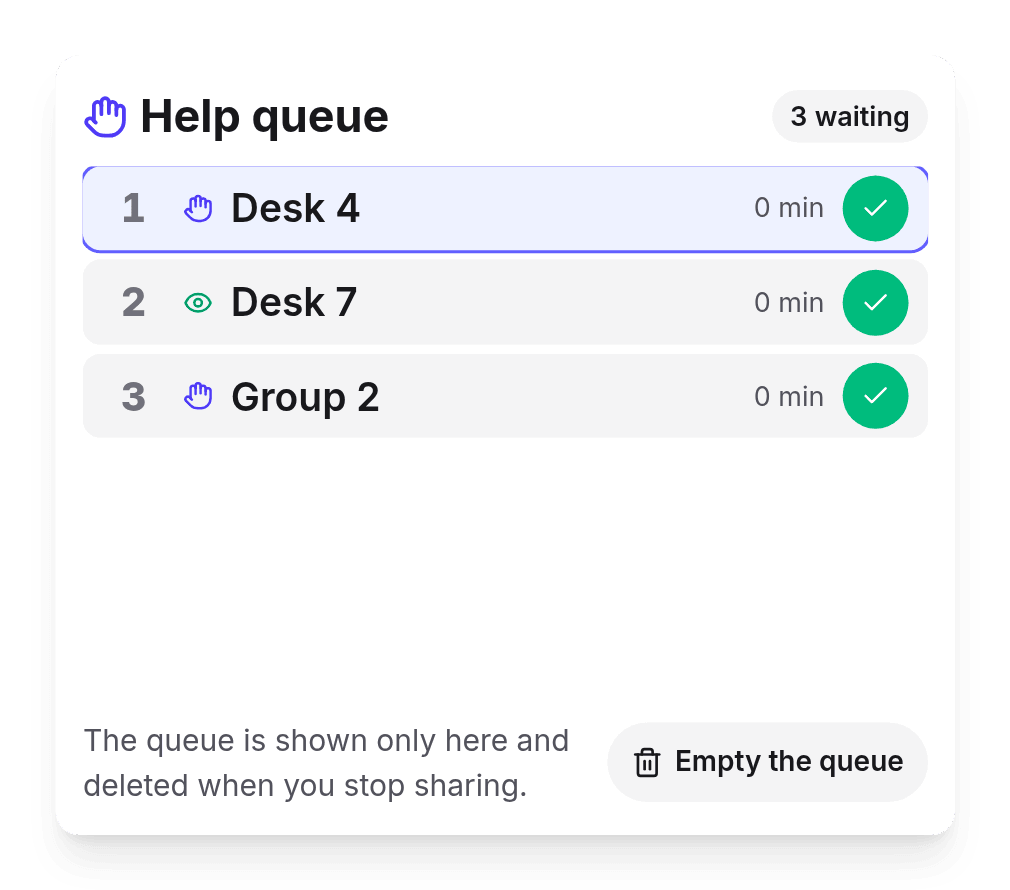
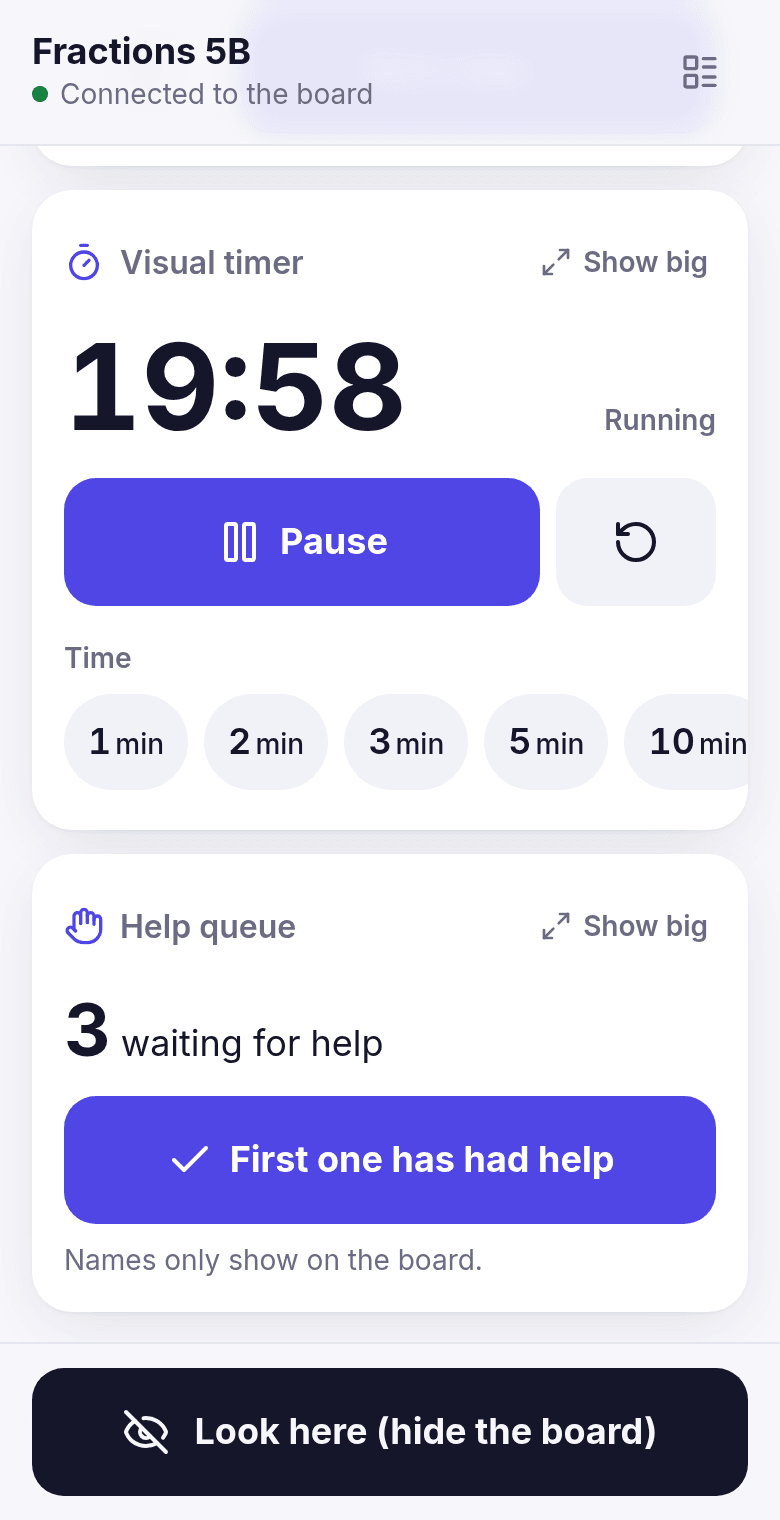
Students join the help queue from their computers or tablets. Your phone shows how many are waiting, and when you have helped the first one you tap First one has had help. The queue moves on on the board and the next student sees it is their turn. Who is in the queue only shows on the board, never on the phone.
Look here: black out the board
When you need everyone’s attention, tap Look here. The board turns black with the words Look here, in the projector window too. Tap again and the board is back.
Like a clicker, for the whole lesson
A clicker changes slides in a presentation. Here you control the presentation on the board from your phone: the lesson’s steps, pages and tools. No extra gadget, just the phone you already have.
Student names are not shown on the phone
The phone only sends button presses. The board does the rest itself, so when you pick a name it shows on the board but never on the phone. Pekpinne only holds the names encrypted.
Ways to use it
- Walk between the desks during independent work and tap to the next step when it is time, without going back to the computer.
- Keep the help queue on your phone: tick off the student you just helped and go straight to the next one.
- Tap Look here when you need everyone’s attention, wherever you are in the room.
How to get started
- Open the lesson on the classroom computer.
- Sign in on your phone with the same account. Scan the QR code under Control from your phone in the board’s toolbar, or choose Control the board in the menu on your phone.
- Walk around the room and control the board with your thumb.
Everything is on the same board: lesson schedule, timer, mini whiteboards and the other tools. No student accounts, and boards and images are stored in Sweden, under GDPR.
Questions
Do I need to download an app?
No. The remote opens in your phone’s browser at app.pekpinne.se/styr. If you want it on your home screen, you can install Pekpinne as an app straight from the browser.
Do I need to be signed in with the same account?
Yes. The computer and the phone must be signed in with the same account. Then the phone finds the board by itself. A phone on another account can neither see nor control your board.
Does it work on iPhone?
Yes. It works in the browser on iPhone and Android, for example Safari and Chrome. The phone and the computer don’t need to be on the same wifi, they just need internet.
Can students control the board?
No. Only someone signed in with your account can control the board. Students can see the board with the student code but cannot control it.
Can I change slides in PowerPoint or Canva from my phone?
No, not inside the presentation itself. The phone changes steps, pages and lessons in Pekpinne and controls the tools on the board.
I have lessons open on several computers. Which one do I control?
The phone asks which board you want to control, and you can switch whenever you like.
How do I turn it off?
Press Control from your phone in the board’s toolbar and choose Turn off phone control. The computer remembers this until you open Control from your phone again.
Missing something? We build what teachers ask for.
Tell us what you miss on the board or what is awkward. We read everything and reply.
Used in the lesson together with
- Help queueA digital help queue for the classroom. Students raise a hand from their computer or tablet and see their place. You tick them off on the board.
- PresentShow the lesson on the projector in its own window and control everything from your computer. Your notes and anything marked Only on my screen never reach the class.
- Lesson scheduleShow the steps of the lesson on the board. The schedule follows the clock, highlights the current step and tells you if the lesson runs too long.
Plan the whole lesson on the same board
Put the tool where it belongs in the lesson, next to the lesson schedule and the timer. The next lesson in the series is one click away.