
Countdown
A countdown to what lies ahead
Write what you are counting down to and pick a date. The board shows how many days are left and says when it's tomorrow and today.
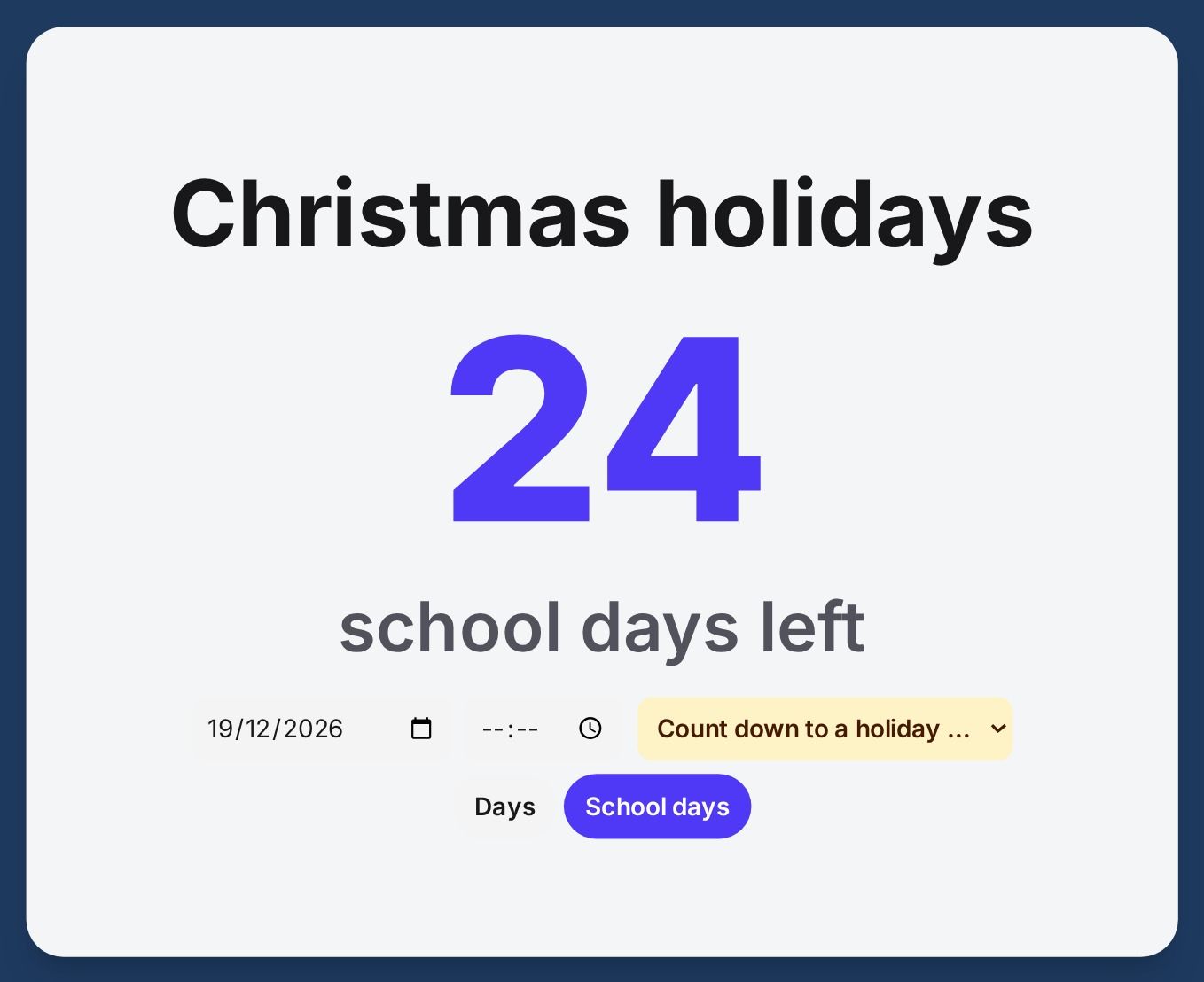
Days left
The widget shows how many days are left. On the last day it shows hours and minutes, then "Tomorrow!" and "Today!".
With or without a time
A date is enough. Add a time if it's a test at 9.00 or a bus at 8.15.
Ways to use it
- Count down to the test, so students see how much time is left to study.
- Count down to the holiday or a trip: something to look forward to.
- Add a time for a bus or an activity at a fixed time.
How to get started
- Add Countdown.
- Write what you are counting down to, such as Physics test.
- Pick a date and, if you like, a time.
Everything is on the same board: lesson schedule, timer, mini whiteboards and the other tools. No student accounts, and boards and images are stored in Sweden, under GDPR.
Questions
What happens when the day has passed?
The widget shows that it has passed, so you see it's time to change it.
Missing something? We build what teachers ask for.
Tell us what you miss on the board or what is awkward. We read everything and reply.
Used in the lesson together with
- Visual timerA large visual timer seen from the back of the classroom. Count down a work session, the whole lesson or the time until break, with work mode and sound.
- Next testShow the next test on the board: topic, date and how many days, school days and lessons are left, with holidays and days off left out.
- Lesson scheduleShow the steps of the lesson on the board. The schedule follows the clock, highlights the current step and tells you if the lesson runs too long.
Plan the whole lesson on the same board
Put the tool where it belongs in the lesson, next to the lesson schedule and the timer. The next lesson in the series is one click away.