
Maths sprint
Maths sprint: the tables at a brisk pace
A quick warm-up for the whole class: questions from the tables you are practising show one at a time, and everyone works them out in their head.
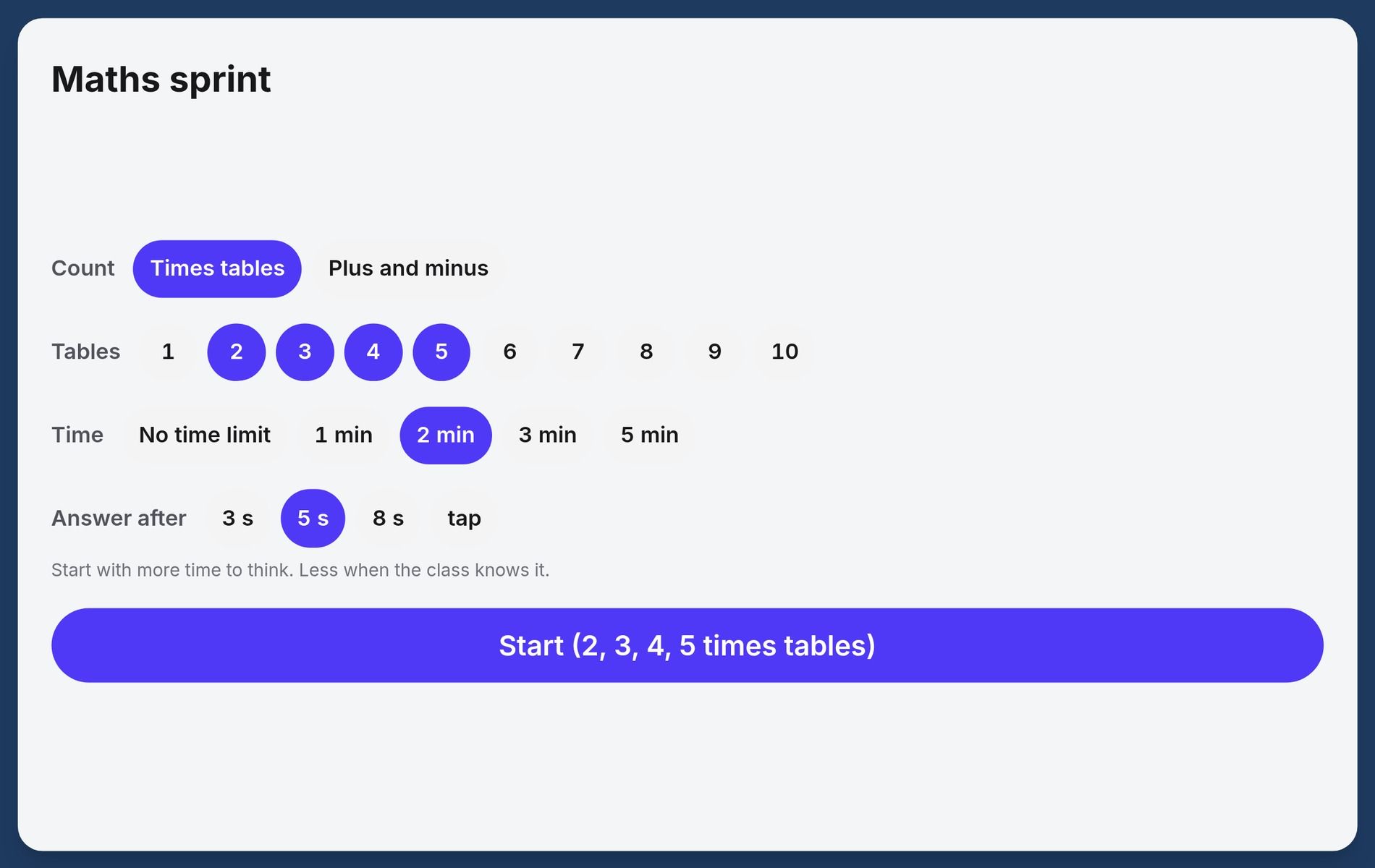
Choose tables and time
Decide which tables come up and how long the sprint lasts.
The answer when you want it
Let the answer show after a couple of seconds, or wait until you tap, so there is time to talk about the question.
Counted for the class
When the time is up the widget shows how many questions you got through. Press Run again and beat the record.
Try it yourself at a calm pace
With the student code a student presses Try it yourself and runs their own rounds with your tables on their own device. It starts calm: no clock, and the answer shows when the student taps. The student can turn on a time limit. Nothing is sent to us and the board does not change.
Ways to use it
- Five minutes of warm-up at the start of the lesson.
- Hold the answer until you tap, so the class has time to talk about strategies.
- Run it again and see if the class gets through more questions than last time.
How to get started
- Add Maths sprint.
- Choose tables, time and when the answer shows.
- Press Start.
Everything is on the same board: lesson schedule, timer, mini whiteboards and the other tools. No student accounts, and boards and images are stored in Sweden, under GDPR.
Questions
Can students run it on their own devices?
Yes. With the student code a student presses Try it yourself and runs their own rounds with your tables at their own pace, without a clock. Nothing is sent to us and the board does not change. If you want the answers scored, use the Times-table test, where every student answers on their own.
Missing something? We build what teachers ask for.
Tell us what you miss on the board or what is awkward. We read everything and reply.
Used in the lesson together with
- Times-table testTimes-table tests without paper: students answer on a tablet or computer, everything is scored at once and you see the hardest facts for the class.
- Dice & randomRoll one or more dice, pick a random number between two numbers or flip a coin, large on the board so everyone sees.
- FractionsA fraction as a picture on the board: choose numerator and denominator and show it as a circle or a bar, with its decimal and percent.
Plan the whole lesson on the same board
Put the tool where it belongs in the lesson, next to the lesson schedule and the timer. The next lesson in the series is one click away.