
Fractions
Fractions students can see
Choose the numerator and denominator and the fraction is drawn. Show the same number as a decimal and a percentage and see how they connect.
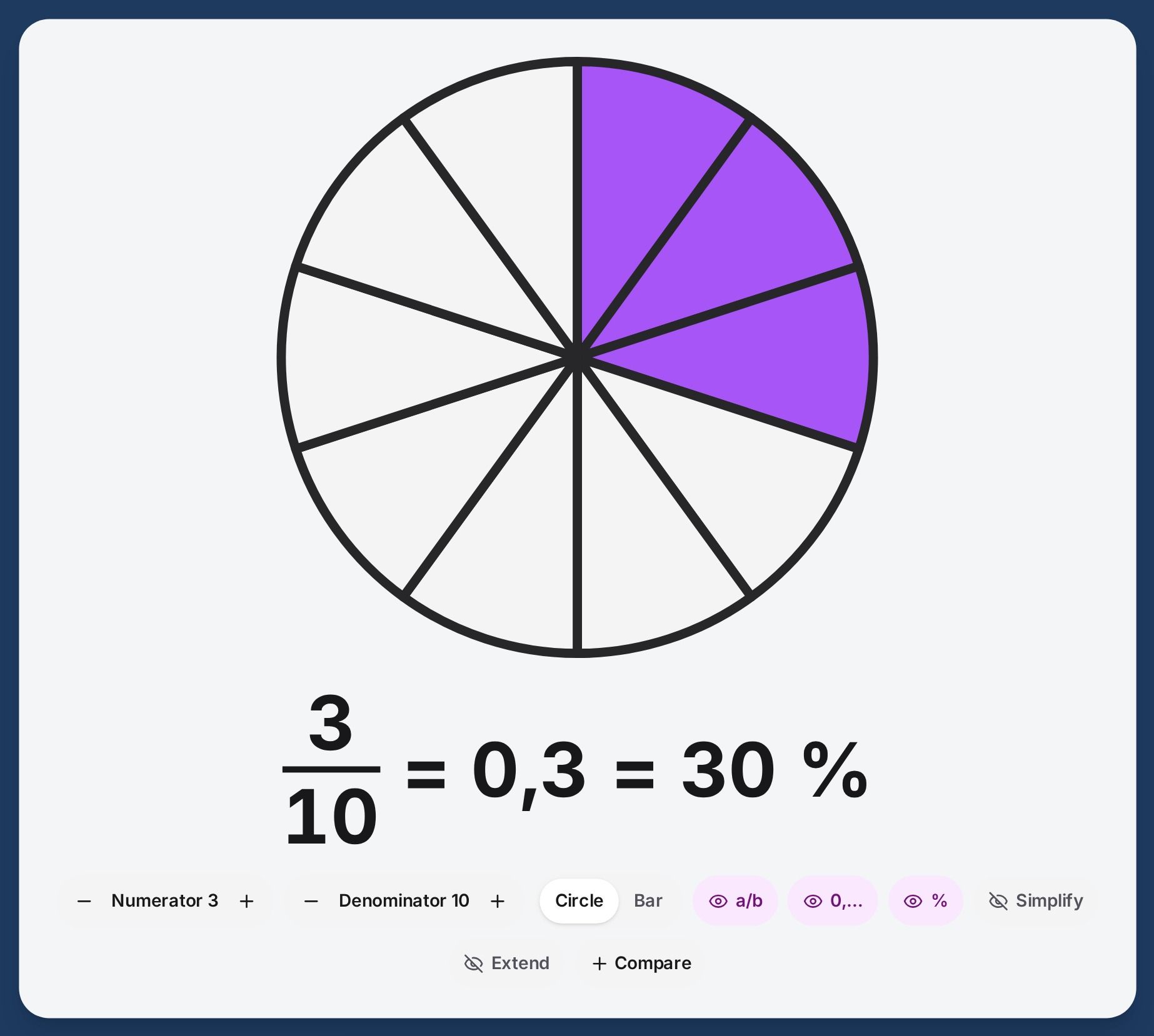
Circle or bar
Switch the picture with a tap: the slice of pie for younger students, the bar for comparing.
Decimals and percent
Turn on decimals and percent when you talk about the same number written different ways. Simplify writes the fraction in its simplest form beside it: 6/8 = 3/4.
Compare two fractions
Press Compare and a second fraction stands beside the first. The sign between them (less than, equal or greater than) stays hidden until the class has decided.
Fill with a tap
Tap a slice or a part of the bar and the fraction fills up to it. Quick on the interactive screen.
Ways to use it
- Show the same fraction as a circle and a bar and talk about what they share.
- Turn on decimals and percent and see that 3/4, 0.75 and 75 % are the same.
- Let students draw the fraction on their mini whiteboards first, then compare with the board.
How to get started
- Add Fractions.
- Choose numerator and denominator with plus and minus, or tap the picture.
- Choose circle or bar.
Everything is on the same board: lesson schedule, timer, mini whiteboards and the other tools. No student accounts, and boards and images are stored in Sweden, under GDPR.
Questions
Can I write fractions in a note?
Yes, the note's Maths button has ½, ¼ and other symbols that go where you are typing.
Can students try it themselves?
Yes. With the student code a student taps Try it yourself and can change and compare fractions on their own screen. Nothing is sent to us and the board stays as it is.
Missing something? We build what teachers ask for.
Tell us what you miss on the board or what is awkward. We read everything and reply.
Used in the lesson together with
- Fraction piecesDrag fraction pieces from one whole to twelfths onto bars or circles. Pieces snap edge to edge, so the class sees how many sixths make a half and which denominator fits.
- Number lineA number line on the board with the numbers you choose and as many parts per whole as you like, as fractions or decimals. Tap to mark a number.
- Maths sprintTimes-table questions from the tables you choose, one at a time on the board. The answer shows after a moment or when you tap.
Plan the whole lesson on the same board
Put the tool where it belongs in the lesson, next to the lesson schedule and the timer. The next lesson in the series is one click away.