
Number of the day
Number of the day: a new number to talk about every lesson
Start the maths lesson with one number large on the board. The class splits it, rounds it and writes it in words, and you show the answers one at a time.
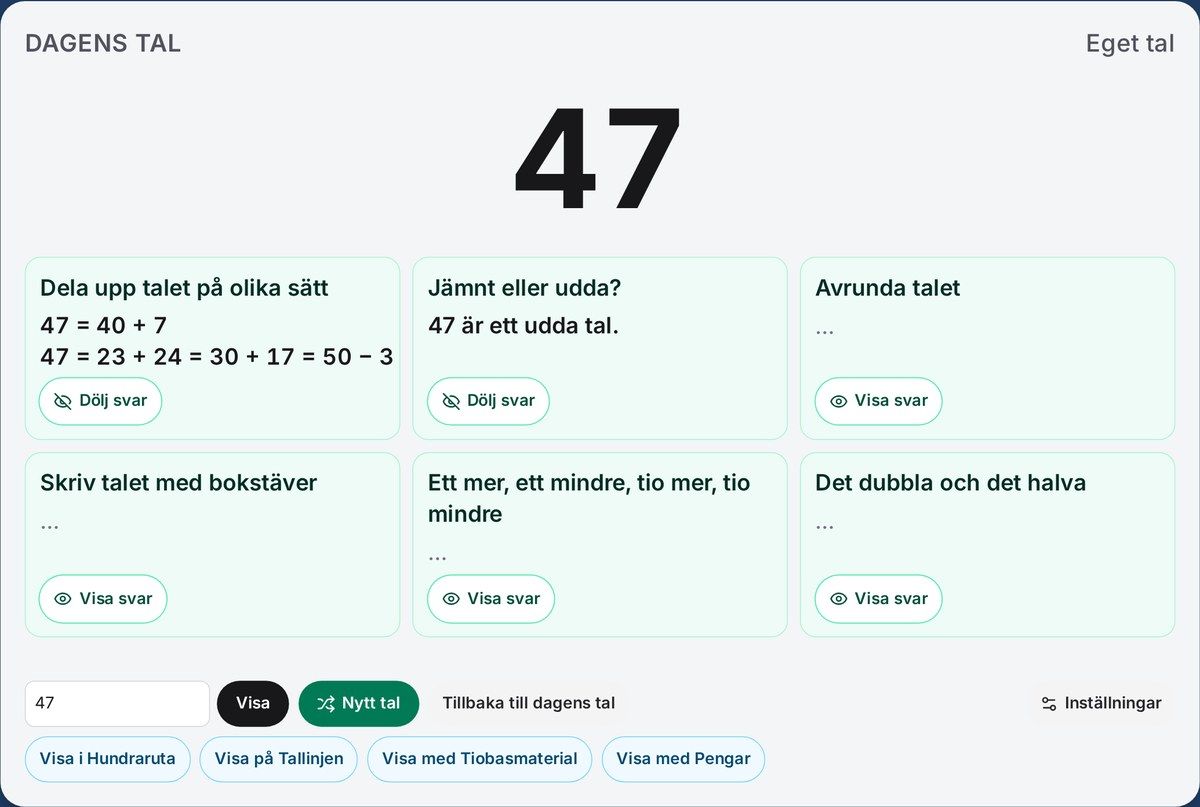
A new number every day
The number changes by itself every day and stays the same all day on your computer, on the projector and on the students' screens. Want another one? Press New number, or type your own.
Tasks that fit the number
Split the number in different ways, odd or even, round to the nearest ten, write it in words, one more and ten less, double and half, and where it sits on the number line. The tasks are worked out from the number, so they always fit.
From the youngest to the oldest
The youngest get numbers up to 20 or 100. Middle years go up to 10,000, with decimals and fractions if you like. The oldest get negative numbers, decimals, powers of ten and percentages, with tasks on primes, factors, squares and square roots.
Answers when you choose
Tick which tasks to show. The answers stay hidden on the projector until you press Show answer on the card, and with One task at a time you bring the cards out one by one.
On to the other tools
Show in Hundred chart, Show on the Number line, Show with Base ten blocks and Show with Money put the number into that tool on the board, so the class sees the same number in several ways.
Part of the lesson
Add Number of the day to the lesson once. When you press New lesson, the next lesson gets a new number by itself, with every answer hidden again.
Ways to use it
- Let pairs split the number three ways before you show the card.
- Ask which tens the number lies between, then press Show on the Number line.
- Write the number in words on the student whiteboards and compare the spelling.
How to get started
- Add Number of the day under Maths.
- Choose the school year and the tasks under Settings.
- Let the class work on the number and show the answers one at a time.
Everything is on the same board: lesson schedule, timer, mini whiteboards and the other tools. No student accounts, and boards and images are stored in Sweden, under GDPR.
Questions
Where do the numbers come from?
They are worked out from the date, the school year and the lesson. There is no question bank and no AI: the tasks and answers are calculated from the number.
Can I choose the number myself?
Yes. Type a whole number, a decimal such as 3.5, a fraction such as 3/4, a percentage such as 35 % or a power of ten such as 4.5 · 10^6 and press Show.
Do the students see the answers?
Not until you show them. The answers are hidden on the projector and on the students' screens until you press Show answer.
Can students answer on their own devices?
Yes. Add Student whiteboards next to it, and the students write their answers on their own screens while the number stays on the board.
Missing something? We build what teachers ask for.
Tell us what you miss on the board or what is awkward. We read everything and reply.
Used in the lesson together with
- Hundred chartA hundred chart with the numbers 1 to 100 or 0 to 99 on the board. Colour squares, hide numbers for the class to guess and show jumps of +1 and +10 as arrows.
- Number lineA number line on the board with the numbers you choose and as many parts per whole as you like, as fractions or decimals. Tap to mark a number.
- Base ten blocksShow numbers with base ten blocks on the board. Add blocks, exchange ten ones for a ten and hide the number so the class answers first.
Plan the whole lesson on the same board
Put the tool where it belongs in the lesson, next to the lesson schedule and the timer. The next lesson in the series is one click away.