
Lesson planning by timetable
Plan lessons around your timetable
Link your timetable to your lessons in Pekpinne and today’s lesson is ready when you open your computer. One click on Open puts it on the board, and the day before you already see what isn’t planned.
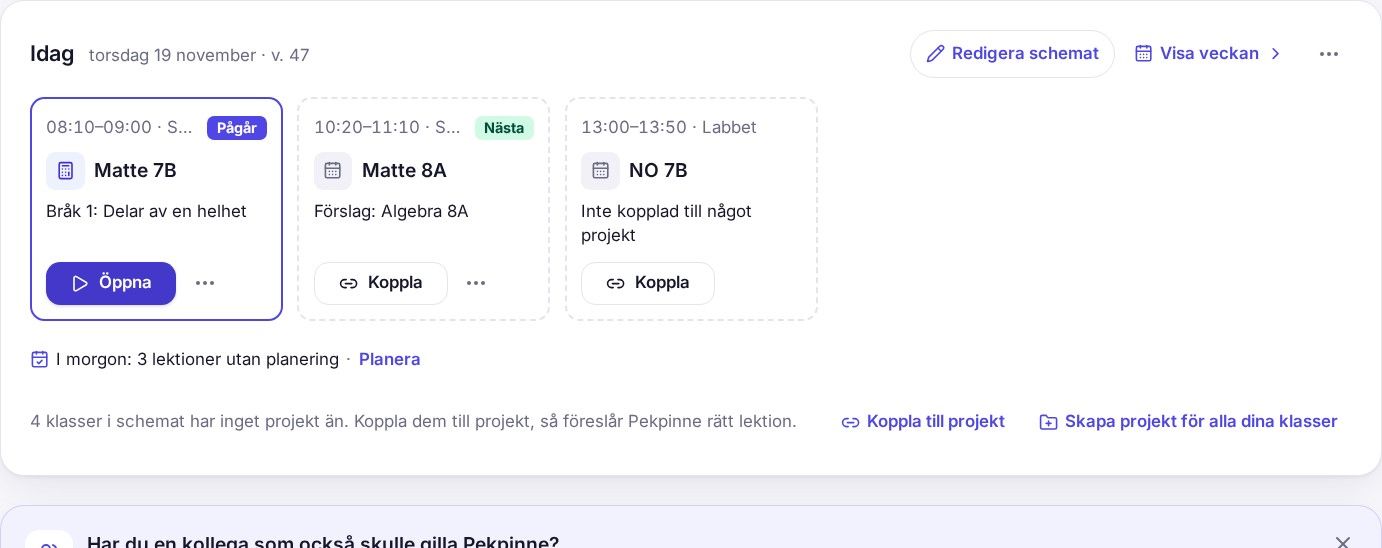
Link your timetable once
Paste the subscription link from your school timetable or work calendar, import a calendar file (.ics) or type in the week yourself. A link stays up to date when the timetable changes, and your timetable follows your account to the classroom computer and your phone.
Link each class to its lessons
Each class in the timetable is linked to a project of lessons, for example Maths 7B. Pekpinne suggests the project when the names match. From then on the start page suggests the right lesson: the one after the lesson you opened last time.
Today’s lesson, ready
The Today box on the start page shows today’s lessons, with the one going on now and the one coming next. Press Open and the lesson is up on the board.
Plan several weeks at once
Plan several weeks puts the project’s next lessons in order on the class’s coming lessons. Holidays and days off are skipped, and you see the whole list before anything is saved. If a lesson is cancelled, press Skip and the rest move along.
A lesson on a given day
To hold a lesson on a particular day, choose Put in the schedule… in the lesson’s menu and pick the time. If a lesson is already there, Pekpinne asks whether the new one goes first or replaces it.
See the day before what is missing
The line under today’s lessons says, for example, Tomorrow: 2 lessons not planned. Press Plan to open that day and add what is missing.
Ways to use it
- Link your timetable at the start of term and lay out the first weeks in one go.
- Open today’s lesson from Today as you walk into the classroom.
- Glance at the Tomorrow line before you go home, so you know what is left.
How to get started
- Press Connect calendar on the start page and paste your calendar link, choose a calendar file or type in your timetable.
- Link each class to a project of lessons.
- Press Open in the Today box when the lesson starts, and Plan several weeks when you want to lay out more.
Everything is on the same board: lesson schedule, timer, mini whiteboards and the other tools. No student accounts, and boards and images are stored in Sweden, under GDPR.
Questions
Where do I find the link to my timetable?
Look for Subscribe, Export calendar or iCal in your school timetable or work calendar and copy the link. It starts with https:// or webcal://.
Can students see my timetable?
No. The timetable and the suggestions are only for you. They never show on the board, in the projector window or on students’ screens.
Are student names sent to Pekpinne?
No. Pekpinne only reads the time, title, place and repeat of your own calendar. Descriptions and attendees are removed and private events show as Busy. The link is stored encrypted on your account.
Missing something? We build what teachers ask for.
Tell us what you miss on the board or what is awkward. We read everything and reply.
Used in the lesson together with
- Lessons and projectsKeep lessons in projects and folders. The next lesson starts as a copy of the last one, with the right name in the series.
- Lesson scheduleShow the steps of the lesson on the board. The schedule follows the clock, highlights the current step and tells you if the lesson runs too long.
- Example lessons25 ready lessons in mathematics, science, languages, Swedish and music. Copy one, change what you like and show it on the board straight away.
Plan the whole lesson on the same board
Put the tool where it belongs in the lesson, next to the lesson schedule and the timer. The next lesson in the series is one click away.