
Results per student
Follow each student's results, without student accounts
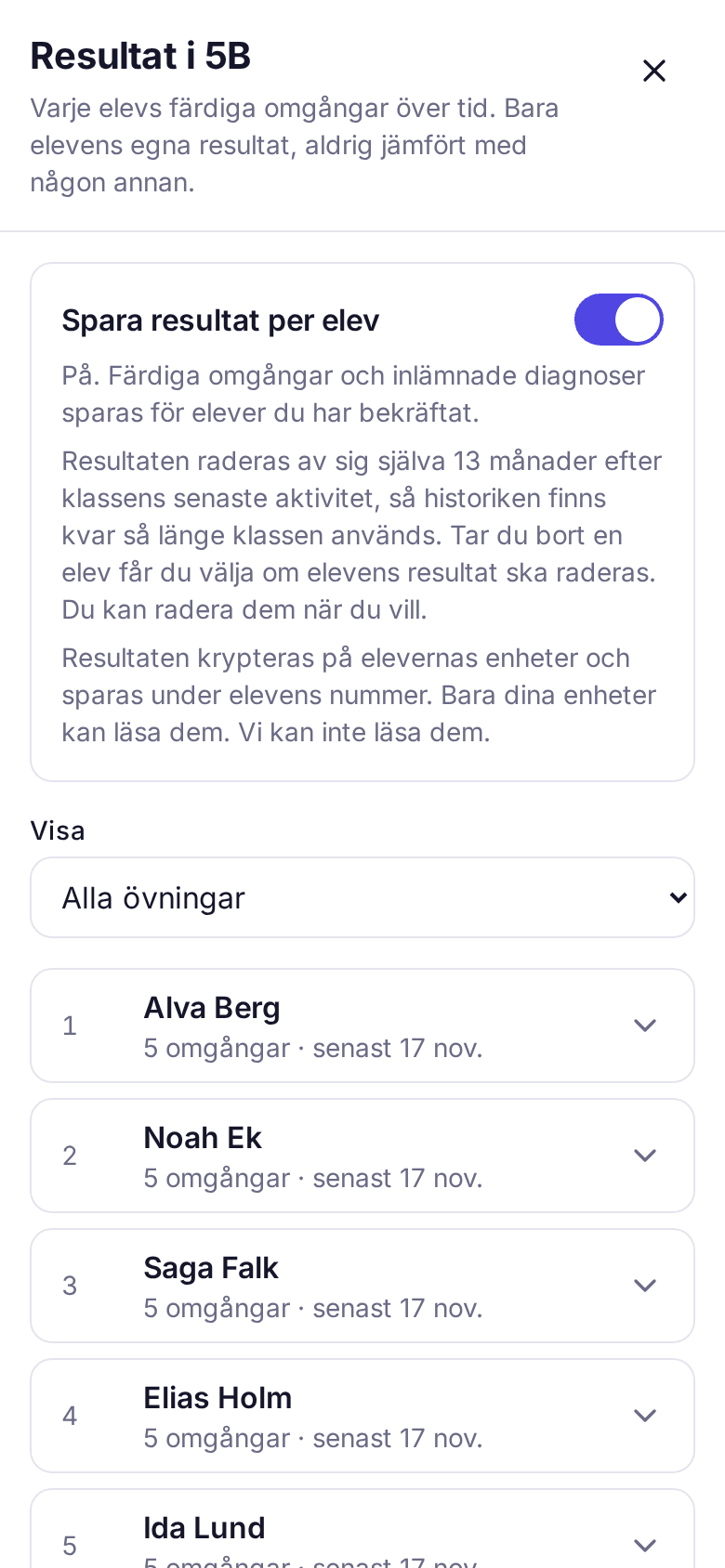
Turn on Save results per student for a class, and the students' finished rounds collect under Classes. You follow each student over time, students see their own results on My page, and nobody is compared with anyone else.
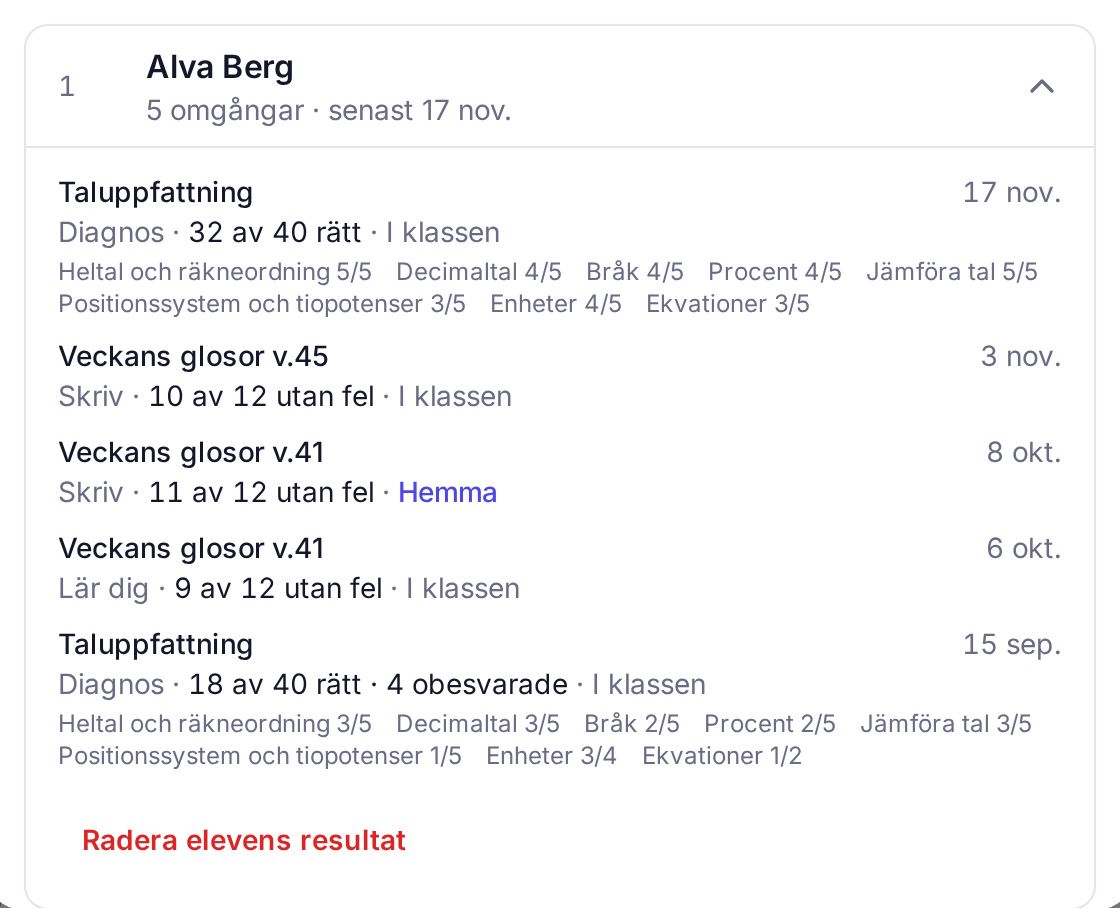
Each student over time
Under Classes, tap Results on the class's row. Every student is there with number and name, and under each student every round with date, activity, mode and result, and whether it was done In class or At home. Under Show, pick one activity to see just that for the whole class.
What counts
Finished rounds in study lists and map practice, once you have shared the lesson with the class and confirmed who each student is. At home with the student code, times tables and typing practice are saved too. A round the student did not finish is saved with how far they got, and an item skipped in a diagnosis counts as wrong.
The class's map
If the class has practised maps, Map analysis shows which places the class knows, which get mixed up and the class's hardest. The hardest places become a new study list in one tap, and Next lesson suggests short activities of about a quarter of an hour. The analysis is worked out on your computer from the students' encrypted results.
Students see their own results
Students have no accounts. At home they go to app.pekpinne.se/elev and type their code under My student code. My page shows To practise, what you have given the class to practise at home, and their own results from school and from home. Nobody else sees them there.
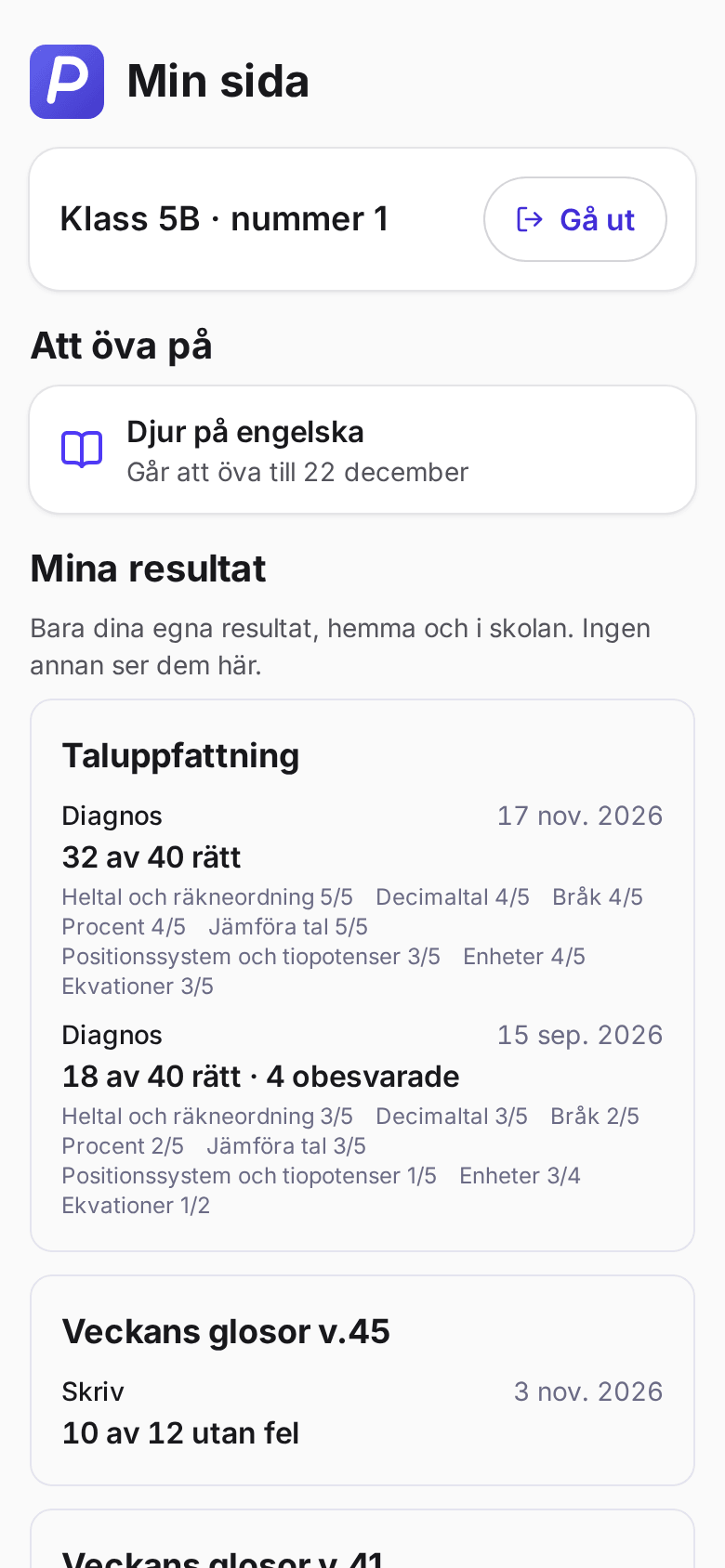
Nobody is compared with anyone else
You see one student at a time. There is no leaderboard and no class average next to a name.
Privacy in plain words
Student names and saved results per student are encrypted on the teacher's and the students' devices, so we can't read them. The class name and student numbers are stored. Answers during a lesson are handled by our server for a day at most. Without encryption we store only the class, the student number, the kind of activity, when, and whether it was done at home, plus a checksum so the same round isn't saved twice.
You decide
Save results per student is off from the start, and you confirm once that you use Pekpinne with your school's approval. Results are deleted by themselves 13 months after the class's last activity. You can delete one student's results or the whole class's whenever you like, and save the results as a file on your computer.
Share the class with a colleague
Under Classes you can share the class as Co-teacher, Read results or Substitute until an end date. The class is encrypted on your computer for the colleague's key, and a substitute sees no earlier results. Results show which teacher held the lesson.
Ways to use it
- Give the week’s vocabulary to practise at home with the student code, and on Monday see which rounds are marked At home.
- Let Map analysis choose the next map practice: the class’s hardest places become a list of their own.
- Open one student’s results before a parent meeting and show their own progress, never compared with anyone else.
How to get started
- Add the class under Classes, tap Results and turn on Save results per student.
- Share a lesson with just the class. Students tap their name and you confirm.
- Print the student cards, so students can practise at home and see their results on My page.
Everything is on the same board: lesson schedule, timer, mini whiteboards and the other tools. No student accounts, and boards and images are stored in Sweden, under GDPR.
Questions
Do students need accounts?
No. In the classroom the student picks their name and you confirm. At home the student code is enough. Students need no email and no password.
Can Pekpinne read the results?
No. Results are encrypted on the students' devices and stored under the student's number. Only your devices, and the student with their own code, can read them.
Do students see each other's results?
No. A student sees only their own results on My page, and you see one student at a time.
What happens on a new computer?
Results open with the class's key, which is on your devices. On a new computer, load the class file or type your recovery key. Without the key neither you nor we can read the saved results.
Does the school need an agreement?
When you turn on results per student, you confirm that you use Pekpinne with your school's approval. The school can get a data processing agreement via hello@pekpinne.se.
Missing something? We build what teachers ask for.
Tell us what you miss on the board or what is awkward. We read everything and reply.
Used in the lesson together with
- Study listMake the week’s vocabulary list once. Students practise on their own devices in class and at home without an account, and the word test is scored at once.
- Map practiceStudents practise Sweden’s provinces and counties, the Nordic countries and Europe’s countries on the map. Missed places come back until they stick.
- Focus modeTurn on Focus mode when you share with the class. If a student leaves the page, their screen locks and you see who left. You let them back in with one tap.
Plan the whole lesson on the same board
Put the tool where it belongs in the lesson, next to the lesson schedule and the timer. The next lesson in the series is one click away.