
Circle of fifths
The circle of fifths on the board: keys, key signatures and chords
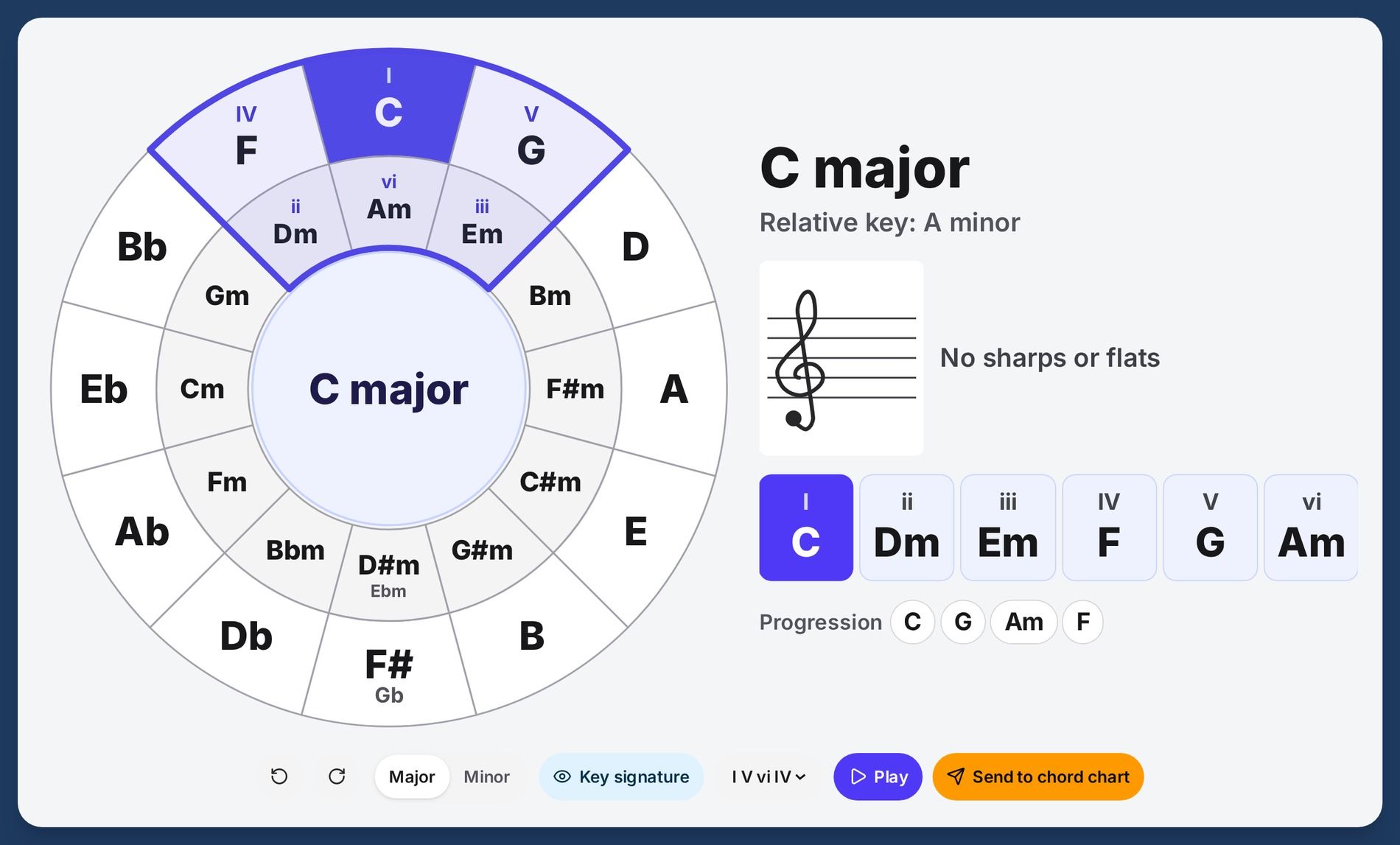
The major keys round the outside and their relative minor keys inside. Tap a key and a window turns to it, showing the six chords that belong together.
Key signatures on the staff
The key signature is drawn on a treble staff with the notes named beside it: G major has one sharp, F sharp. Hide it so the class works it out first.
The chords that belong together
The window shows I, IV and V in major and ii, iii and vi in minor inside them. Tap a chord to hear it with a piano sound.
To the chord chart
Choose a common progression like I V vi IV and press Send to chord chart. It goes into the chord chart on the board, or a new one, with guitar and ukulele diagrams.
Note names for your language
In Swedish the circle says H and B as in Swedish music lessons; in English it uses B and B flat.
Ways to use it
- Hide the key signature, choose a key and let the class count the sharps or flats.
- Play I, IV and V of a key and let the class hear which one ends the song.
- Send I V vi IV in G to the chord chart and play it together.
How to get started
- Add Circle of fifths.
- Tap a key on the outer or inner ring.
- Play the chords or send the progression to the chord chart.
Everything is on the same board: lesson schedule, timer, mini whiteboards and the other tools. No student accounts, and boards and images are stored in Sweden, under GDPR.
Questions
What if a chord has no diagram?
The circle says which chords are missing and sends nothing. Choose another key or progression.
Are minor chords shown too?
Yes. Press Minor or tap the inner ring, and the chords are shown from the minor key: i, iv, v, III, VI and VII.
Can students try it themselves?
Yes. With the student code a student presses Try it yourself and chooses their own keys on their screen. Nothing is sent to the board.
Missing something? We build what teachers ask for.
Tell us what you miss on the board or what is awkward. We read everything and reply.
Used in the lesson together with
- Chord chartBig guitar and ukulele chord diagrams on the board, and a practice mode where the next chord comes in time with a click, so the changes get quicker.
- PianoTwo octaves of piano to play, and a chord or a scale lit up on the keys with the note names: A minor is A, C and E.
- Note readingA note on the staff and the student taps its name. Three levels, treble and bass clef, score and streak. Students practise at their own pace on their own screen.
Plan the whole lesson on the same board
Put the tool where it belongs in the lesson, next to the lesson schedule and the timer. The next lesson in the series is one click away.