
Diagnostics · MathsComing soon
Maths diagnostic test that marks itself
Number sense with 50 items, from the most basic to the hardest. Give the whole class the same items or each student their own level. Students answer on their own device, everything is marked at once, and you see what each student needs next.
What you get
50 items in order
Number sense for ages 13 to 16, basic to hardest. In Swedish.
6 levels
Each student gets a level from their last result.
16 versions
The original’s versions or new numbers. Good for a retake.
You pick the items
Take all, tick some or shuffle evenly across the areas.
Answer with a code
On a phone or a computer. No account and no clock.
Results, next steps
Per student and area, with Next lesson and Practise this area.
For the teacher
From the library to the next lesson: how you start a test, follow the class and know what to practise.
How it works (the film is in Swedish)
Start a test
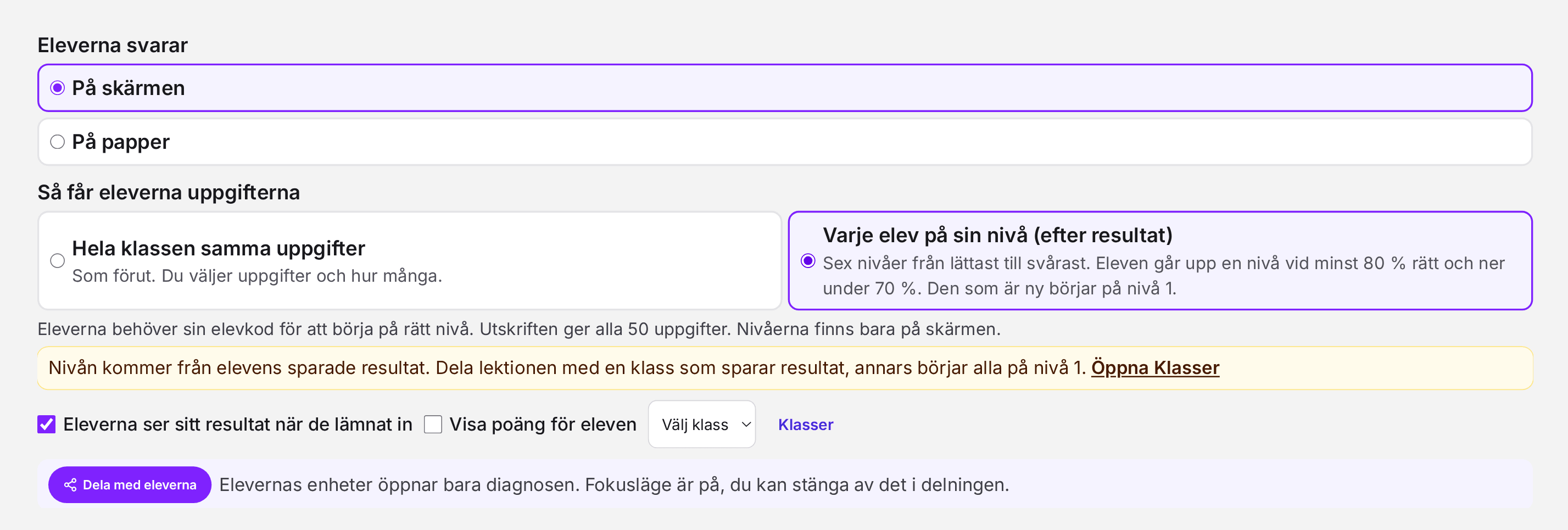
Open Diagnostics in the menu, press Use with the class on Number sense and then Create the lesson. The test lands on a board, where you choose the version, whether students answer on screen or on paper, and how they get the items.
Choose items or give each student their level
The same items for the whole class: take all 50, tick the ones that suit you now, or type a number and press Pick, and items are picked evenly from all 13 areas. Each student on their own level: 6 levels of 25 to 38 items. A student who had almost everything right last time moves up a level, one with many mistakes moves down, and a new student starts on level 1.
Share with the class and follow the answers live
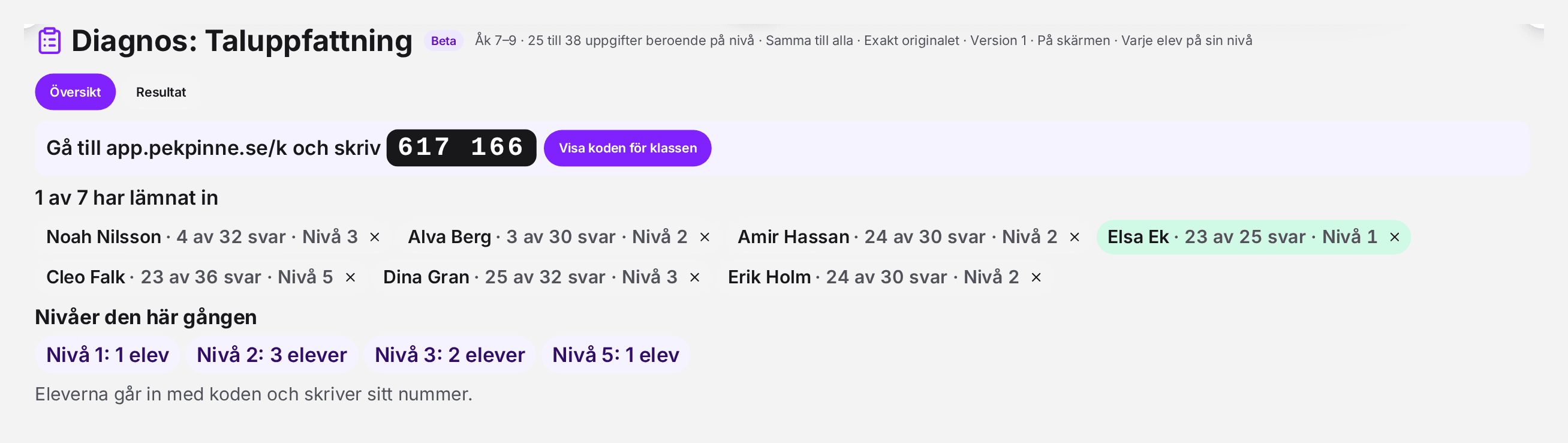
Press Share with the students and choose your class. Students scan the QR code or type the code and tap their name. Confirm that everyone is in, and each student gets their level. You see who is in, each student’s level and how many items each has answered, while they work. With Focus mode you see if someone leaves the test.
Results per student and per area
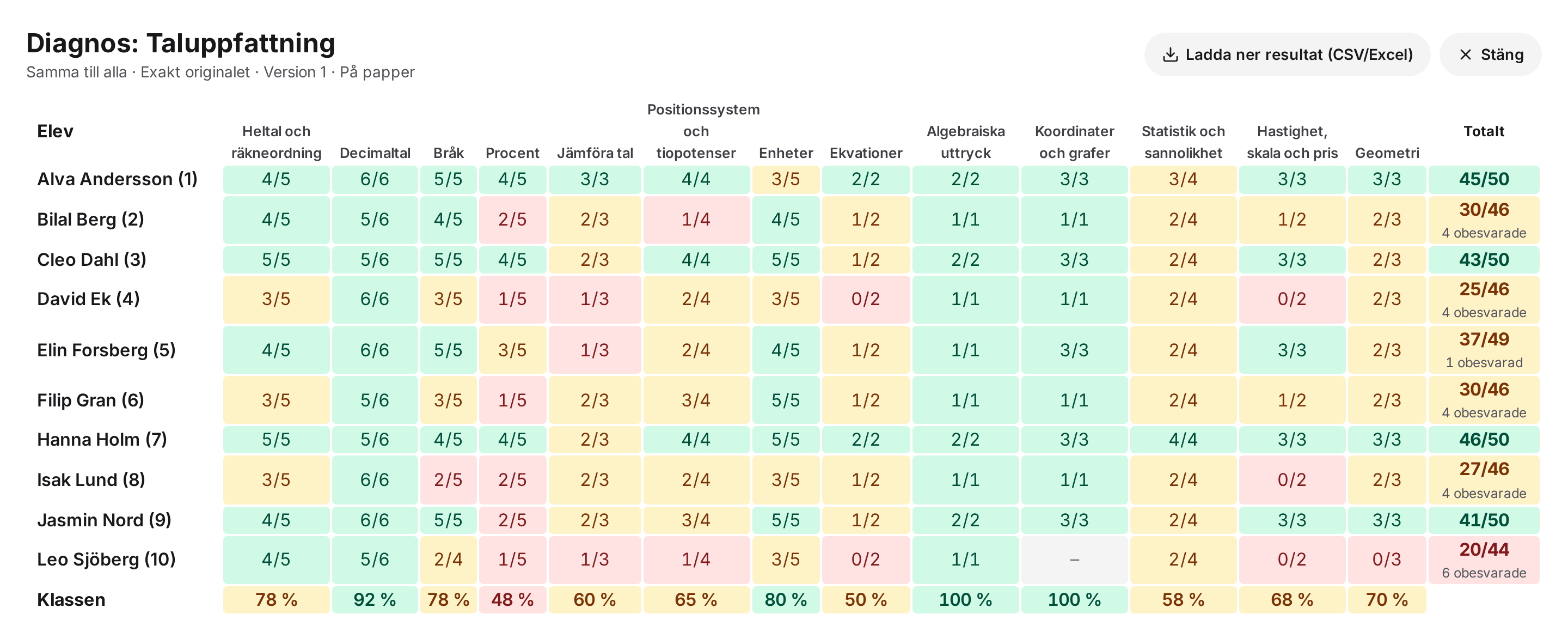
Press End. The class shows per area, and Show per student and area gives the whole table with each student’s level and next time’s. The same mistake in two items or more shows as a pattern, with a tip on how to sort it out. Names come from the class list on your computer.
Next lesson and Practise this area
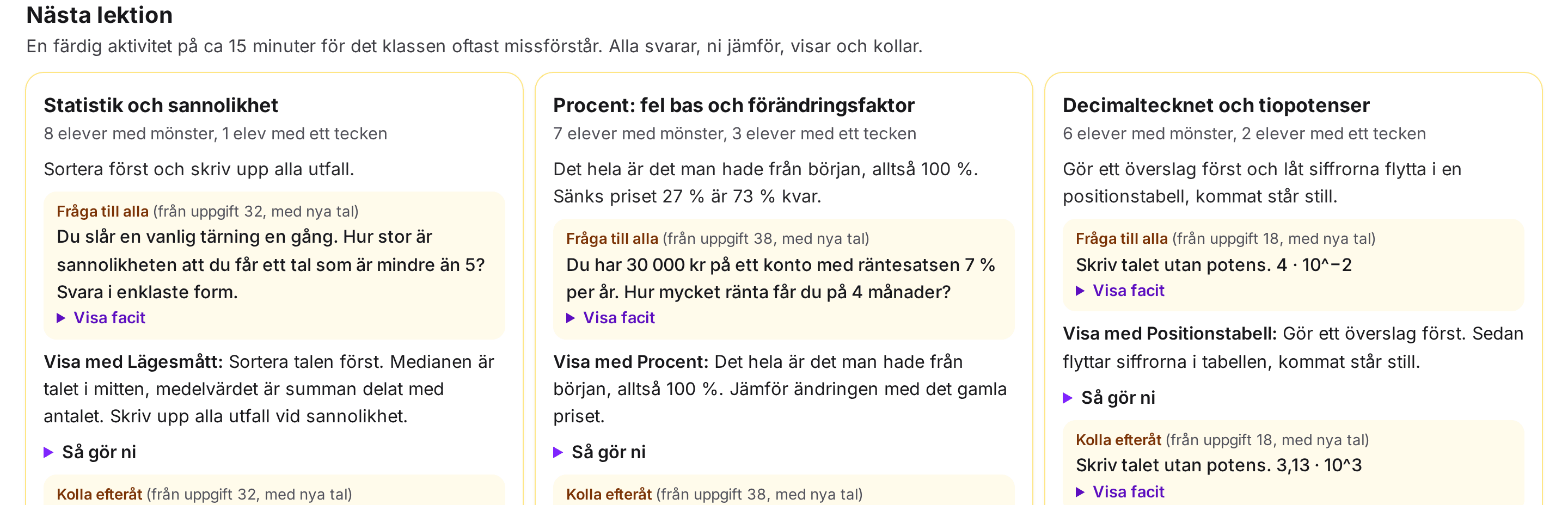
Next lesson is a ready activity of about 15 minutes for what the class most often misunderstands, with new numbers. Put it on a new board with one press. Practise this area gives a code, a link and a QR code with new numbers for just that area, at school or at home.
Saved per student, but not readable by us
With a class in Classes and results per student switched on, each student’s handed in test is saved, so you see the progress and the level next time. Names and results are encrypted on your computer and the students’ devices. We can’t read students’ names or results.
Make your own test
In the Diagnosis builder you write your own items. Let the numbers be picked within limits you choose, and every student gets their own numbers with the same difficulty. The preview shows ten variants with their answers while you write.
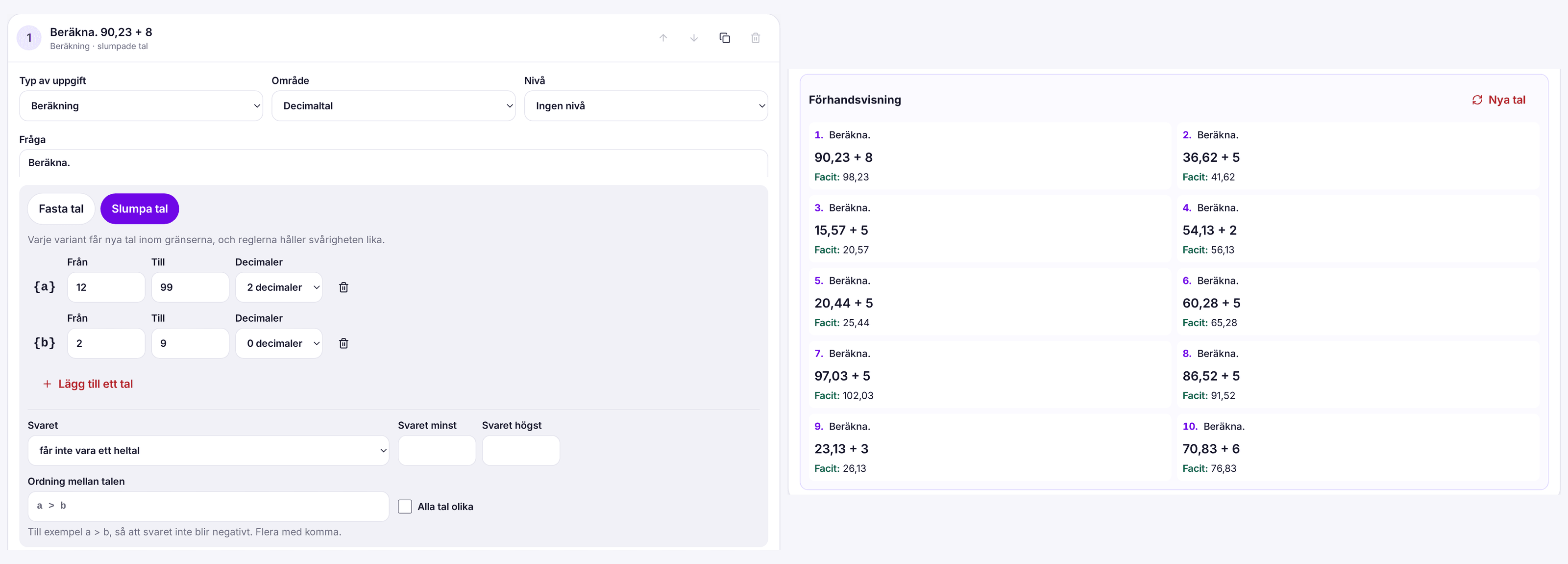
Kind of item
- Calculation
- Number with unit
- Fraction
- Multiple choice
- Short text
Copy and edit
Make a library test your own and change it.
Share a copy
A colleague gets their own copy. Never students or results.
Print with the key
Sheets for the class and the key for you, or on screen.
SoonKollegan will soon be able to suggest items for your test (an add-on). Kollegan never trains on your items or on students’ answers.Trust for schools →
Diagnostics is coming soon for everyone. Want to try it first?
For the student
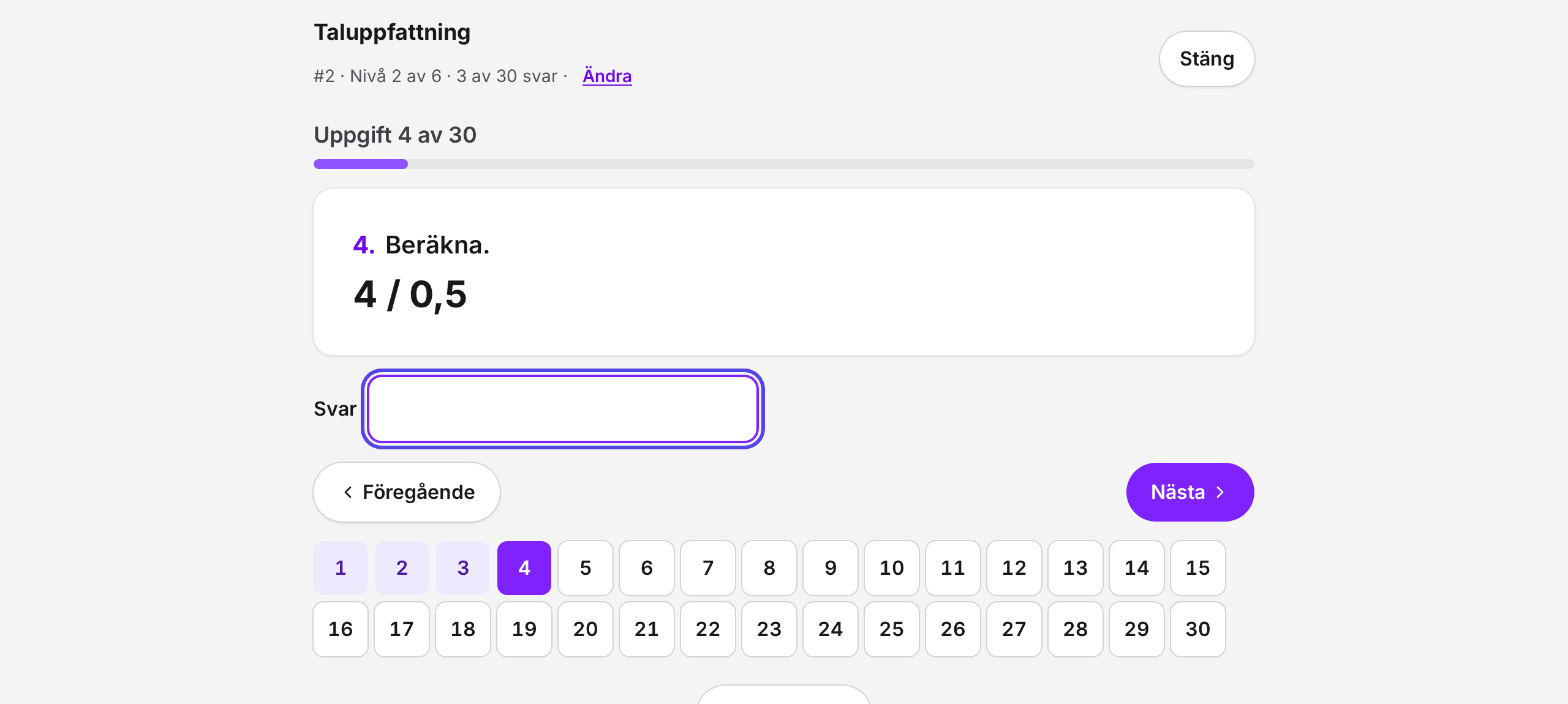
The same test on a phone and on a computer. One item at a time, no clock, and marked at once.
Practise anywhere
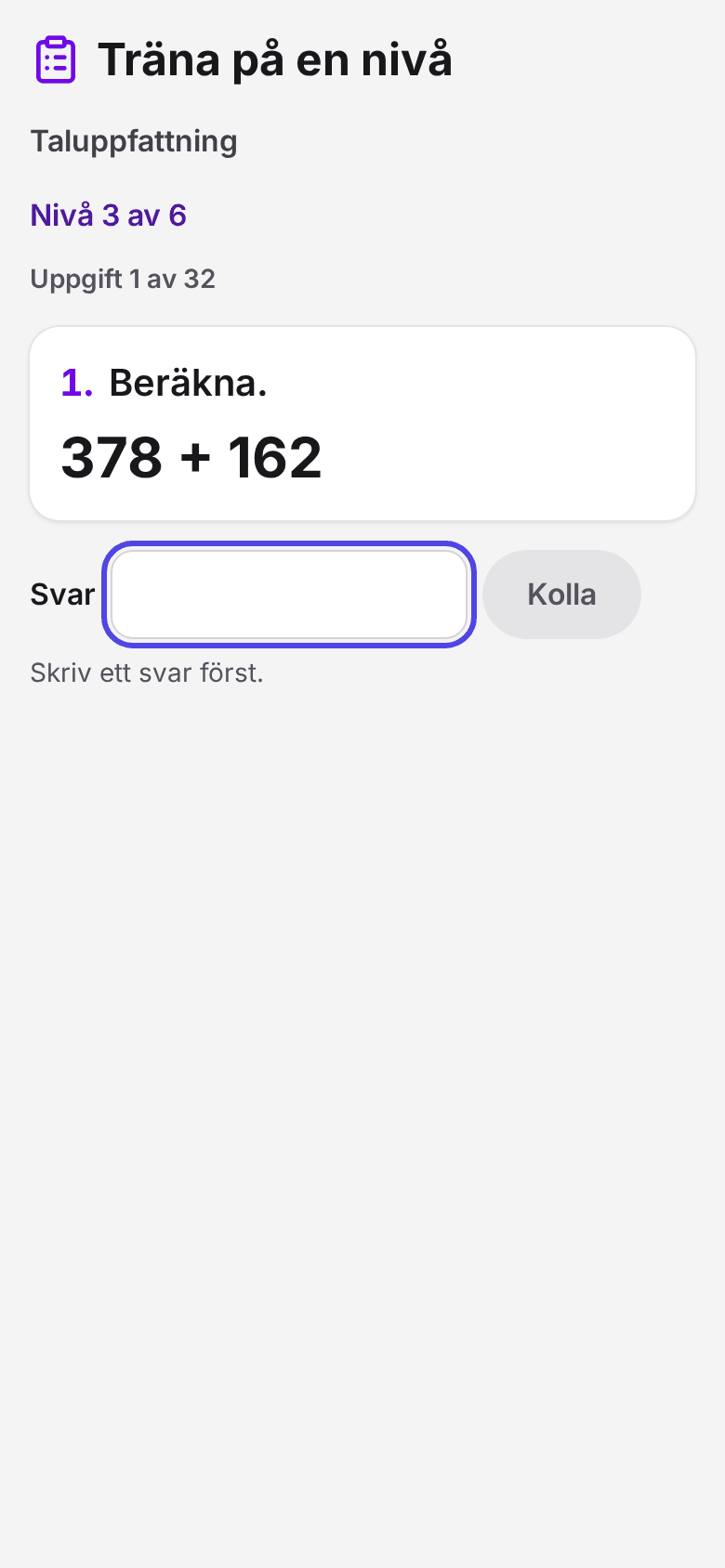
With their code, students can practise on their level on the phone, a little at a time. On the bus, after sports or at home.
What the student sees (the film is in Swedish)
In with a code, no account
The student scans the QR code on the board, or goes to pekpinne.se/k and types the lesson’s code. Then they tap their name or number. You confirm that everyone is in, and each student’s level comes by itself. No account and no password.
One item at a time
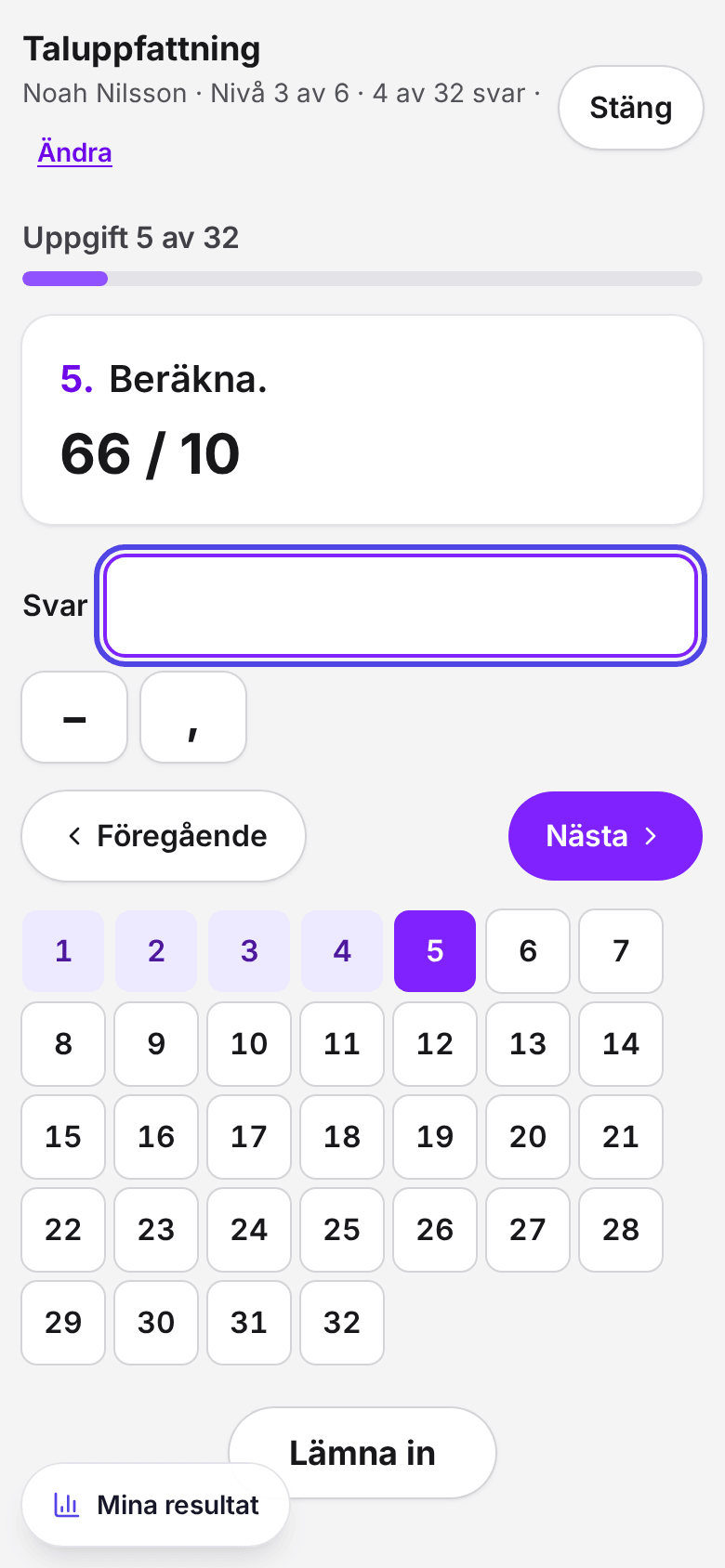
The student types the answer or picks one and moves on with Next. The boxes below show which items are answered, and they can go back and change. No clock counts down. When they are done they press Hand in.
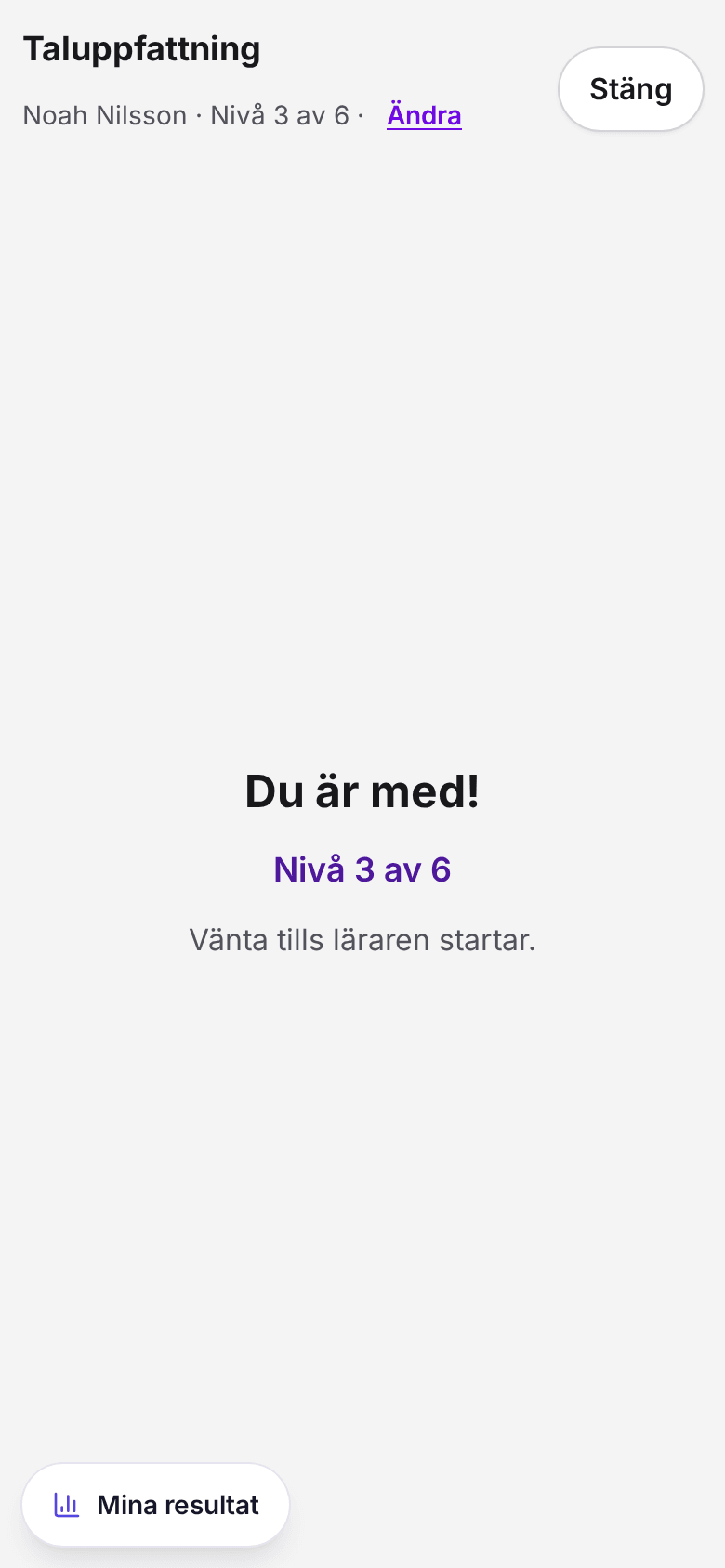
Level 3 of 6
When each student gets their own level, it shows at the top, for example Level 3 of 6. It comes from the student’s last result, and each student sees only their own level.
Marked at once
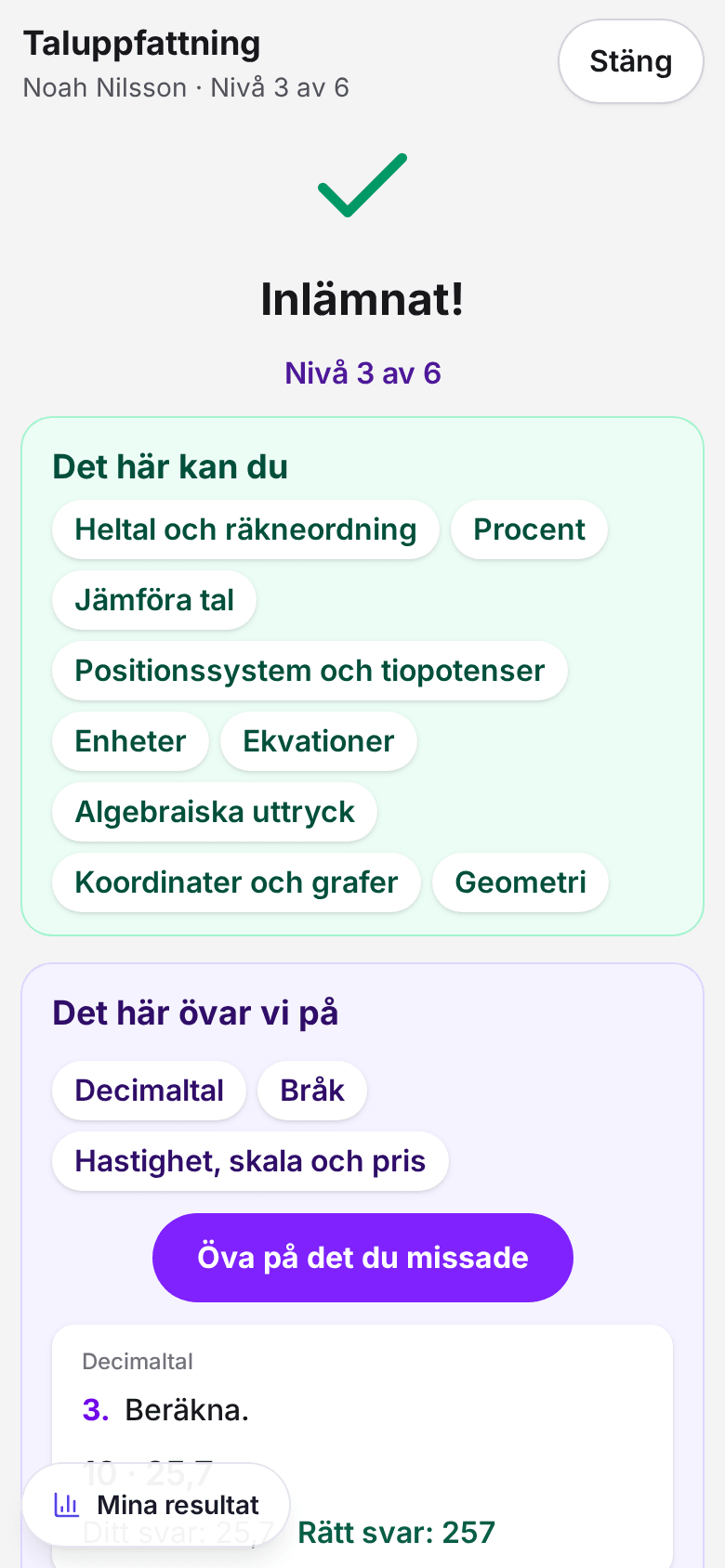
After Hand in the student sees what they can do and what to practise, with their answer and the right answer for each item they missed. When everything is right it says so. No scores and no percentages, only what they know and what to practise.
Practise a level, at home too
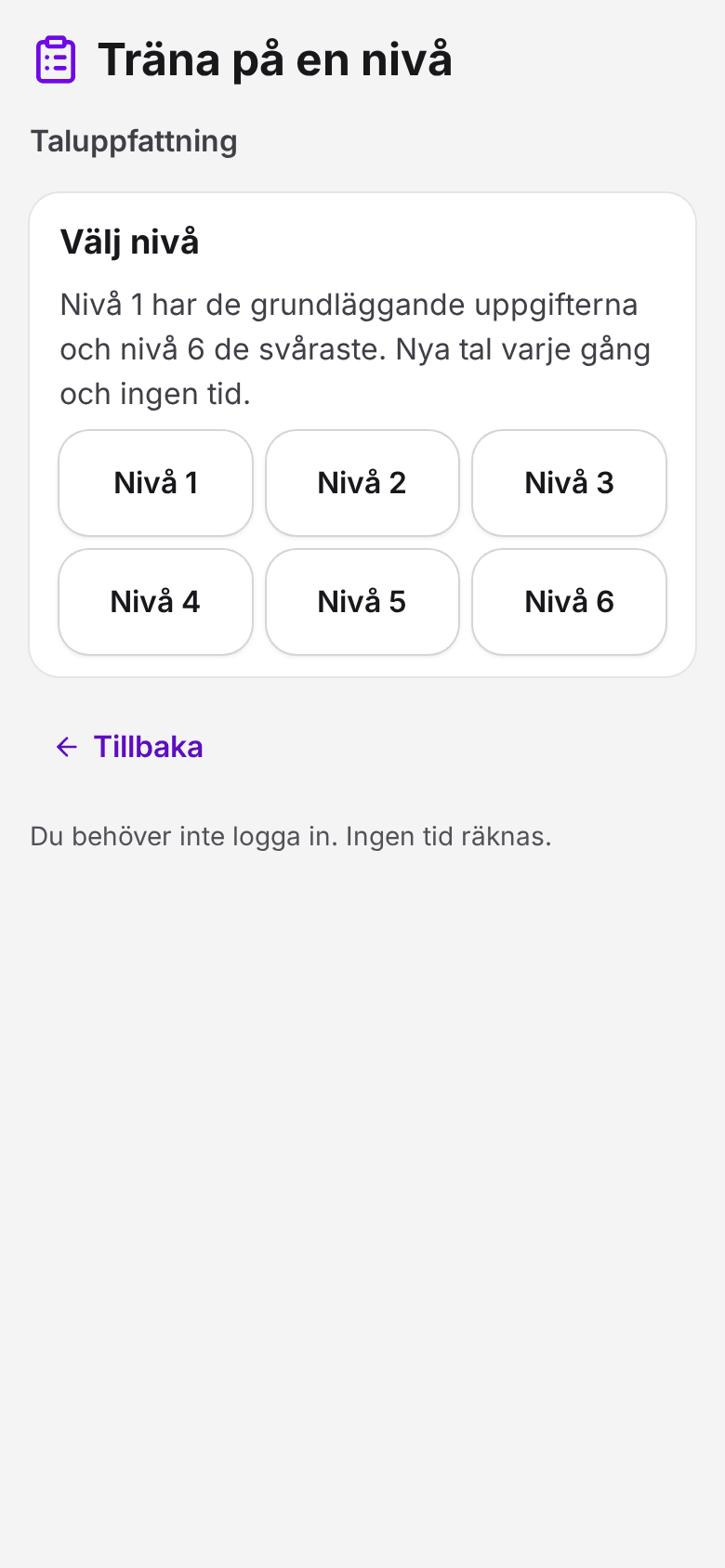
With Practise a level the student picks a level from 1 to 6 and practises with new numbers every time. No clock and no login. You share the link, or give the class Practise this area after the test.
NewStudents see their own progress on My page, with their code.
Questions
Do students need accounts?
No. Students join with the lesson’s code and tap their name or number. Names stay on your computer.
How do the levels work?
There are 6 levels of 25 to 38 items. A student with almost everything right last time moves up a level, one with many mistakes moves down, and a new student starts on level 1. The level comes by itself once you have confirmed who is in. The levels are on screen only. Printing gives all 50 items.
What language are the items in?
The items in Number sense are written in Swedish, and the app around them is in your language. In the Diagnosis builder you write your own items in any language.
Can the class take it on paper?
Yes. Print the sheets with the answer key. Students work on paper and then type their answers in, or you type them in or mark with the key.
Can you see students’ results?
No. What is saved per student is encrypted on your computer and the students’ devices, so we can’t read names or results.