
Reward jar
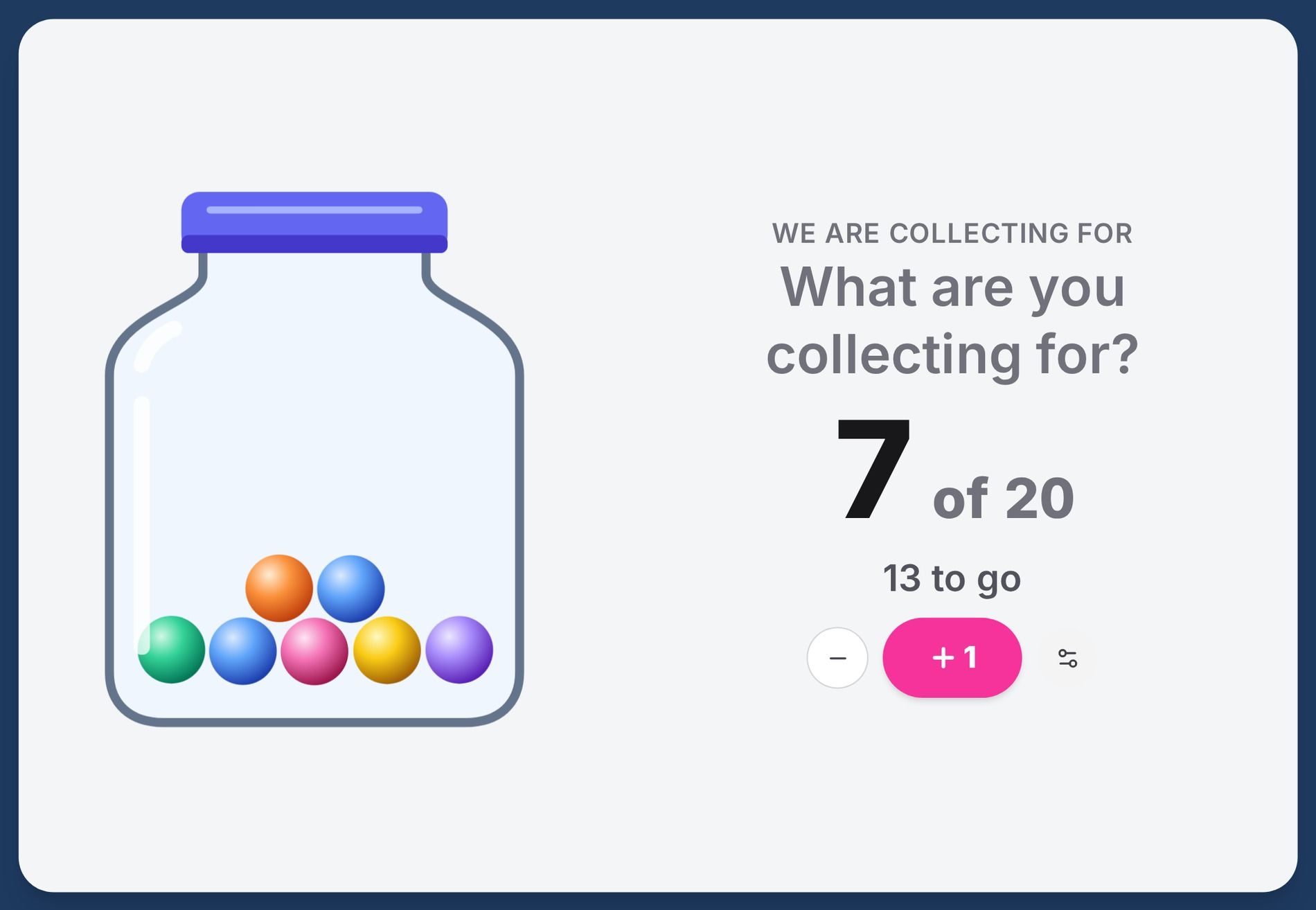
A reward jar on the board: the class collects for a reward
The class works toward a shared goal. Each time they do something well you add a marble and everyone sees the jar fill up.
One goal for the whole class
Write what you are collecting for (for example a film on Friday) and choose how many marbles fill the jar. The jar counts for the class together, never for single students.
One marble at a time
Press +1 and a marble drops into the jar. Made a mistake? Take one out again. How many are left is shown big for the whole class.
Celebrate when it is full
When the jar is full the reward is shown big with confetti and a sound. There is no confetti when the computer is set to reduce motion, and the sound can be turned off.
From your phone
With Control from your phone you add a marble while you walk around the classroom.
Ways to use it
- Collect for something the class has chosen together, like an outdoor lesson or a game.
- Add a marble when the whole class is ready on time after the break.
- Start a new jar with a smaller goal for the first weeks of term.
How to get started
- Add Reward jar.
- Write what you are collecting for and choose how many fill the jar.
- Press +1 when the class has done something well.
Everything is on the same board: lesson schedule, timer, mini whiteboards and the other tools. No student accounts, and boards and images are stored in Sweden, under GDPR.
Questions
How many marbles can the jar hold?
From 5 to 50. The marbles get smaller when the jar holds more, so it looks full when the goal is reached.
Is the jar kept for the next lesson?
Yes. The jar is saved with the lesson, so you can keep collecting the next day.
Can I fill it with something other than marbles?
Yes. In the settings you choose marbles or stars.
Missing something? We build what teachers ask for.
Tell us what you miss on the board or what is awkward. We read everything and reply.
Used in the lesson together with
- ScoreboardA scoreboard on the classroom board: teams with their own names, plus and minus, and reset. For contests, quizzes and games.
- Sound levelThe noise meter shows the sound level on the board. Animals come out in the calm scene while it is quiet, so the class sees its calm. Nothing is recorded.
- Work modeShow how the class is working right now: alone, in pairs, in groups, whisper, silent work or hands up.
Plan the whole lesson on the same board
Put the tool where it belongs in the lesson, next to the lesson schedule and the timer. The next lesson in the series is one click away.