
Rhythm grid
A rhythm grid on the board: build drum beats and body percussion
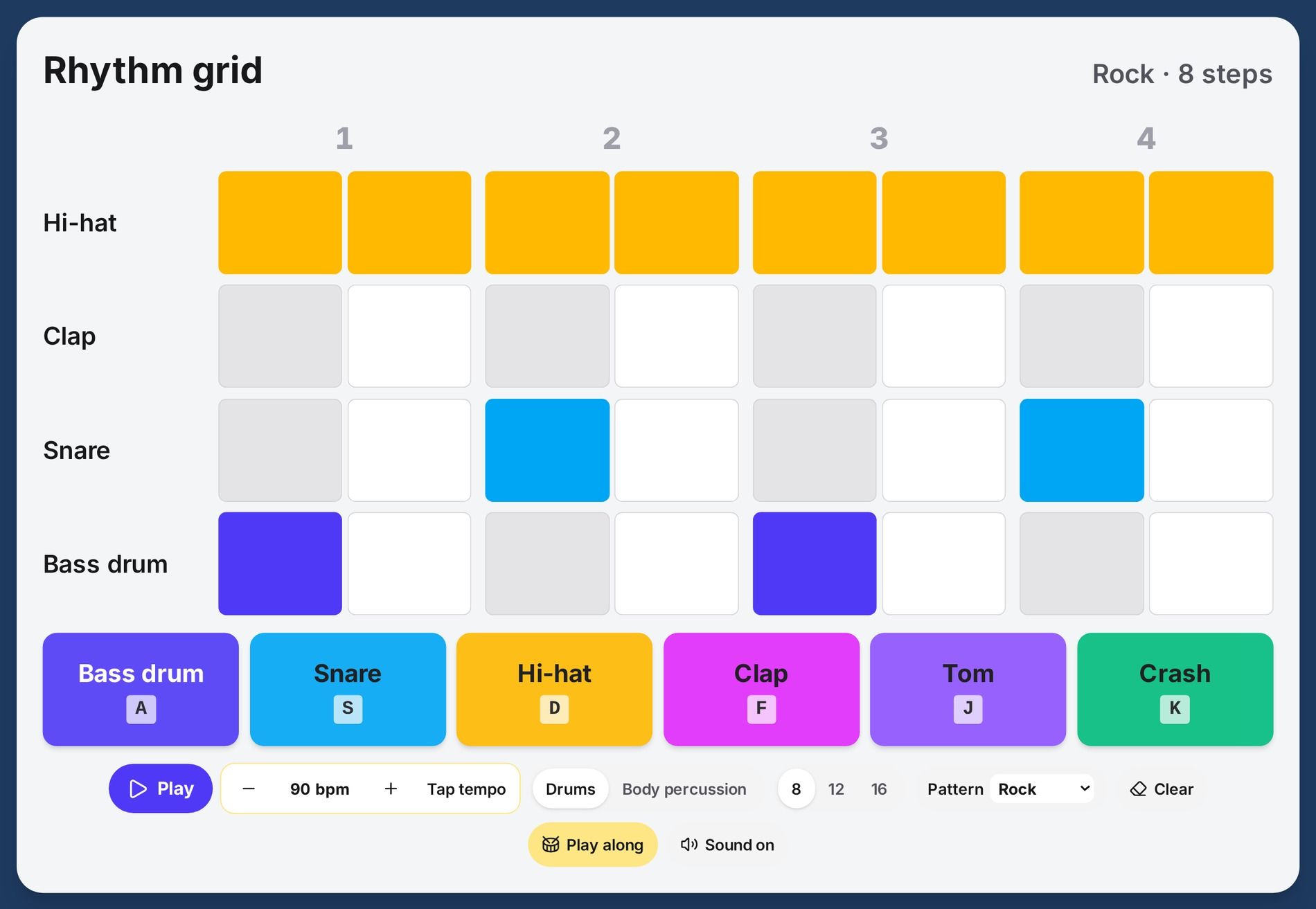
Tap the steps for hi-hat, clap, snare and bass drum and press Play. A marker runs along the bar so the whole class sees which step is sounding.
8, 12 or 16 steps
Eighths, triplets or sixteenths in four four time. Change the length and the steps stay in the same place in the bar.
Body percussion
For the youngest: the rows become stomp, clap and snap with simple pictures in the steps, so the class can play the rhythm with their bodies.
Play along on pads
Press Play along and pads appear under the grid: bass drum, snare, hi-hat, clap, tom and crash. Tap them or use the keys A S D F J K. The pads light up when the rhythm plays them.
Patterns to start from
Rock, pop, disco, half time, shuffle and a few body percussion patterns. Change a step and it becomes your own.
Sounds made in the browser
The drums and claps are made right in the browser, with no sound files. Turn the sound off when the class plays it themselves.
Ways to use it
- Clap the pattern together, then let one student play along on the pads.
- Turn the sound off and let half the class stomp and the other half clap.
- Let groups build their own beat and play it for the class.
How to get started
- Add Rhythm grid.
- Choose a pattern or tap the steps.
- Choose a tempo and press Play.
Everything is on the same board: lesson schedule, timer, mini whiteboards and the other tools. No student accounts, and boards and images are stored in Sweden, under GDPR.
Questions
How do I change the tempo?
With minus and plus, or tap the beat a few times on Tap tempo.
Do I lose the drum beat if I switch to body percussion?
No. Drums and body percussion each keep their own pattern, so you can switch back and forth.
Can students try it themselves?
Yes. With the student code a student presses Try it yourself and builds their own rhythm on their screen. Nothing is sent to the board.
Can students play along on their own screen?
Yes. With the student code a student taps Practise and gets the rhythm grid full screen, with the sound there and the pads if you show them.
Missing something? We build what teachers ask for.
Tell us what you miss on the board or what is awkward. We read everything and reply.
Used in the lesson together with
- MetronomeA metronome you can see from the back row: the beat of the bar as a big number, a pendulum and a click accented on the one. Time signature, tempo and tap tempo.
- PianoTwo octaves of piano to play, and a chord or a scale lit up on the keys with the note names: A minor is A, C and E.
- Circle of fifthsA circle of fifths to tap. Choose a key and see its key signature, relative key and the chords that belong to it. Play the chords and send a progression to the chord chart.
Plan the whole lesson on the same board
Put the tool where it belongs in the lesson, next to the lesson schedule and the timer. The next lesson in the series is one click away.