
Angles
Angles and a protractor on the board: measure and draw angles
A protractor the whole class can see. Show how to place it, which scale to read and how big the angle is. Drag the arms or type the degrees.
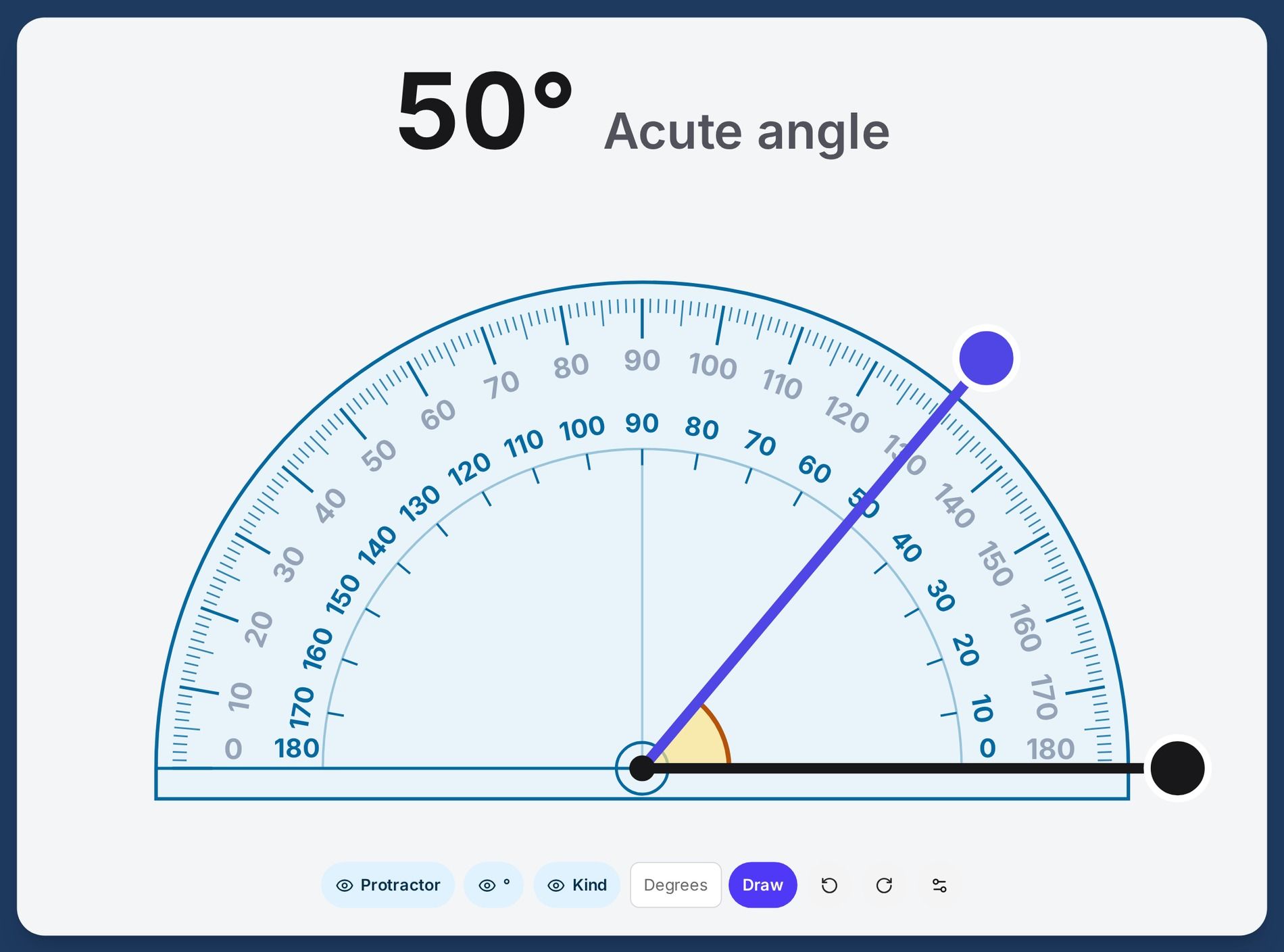
Measure with two scales
The half circle has two scales like a real protractor. The scale that starts at 0 on the first arm is coloured, so students see which one to read.
Draw the angle
Type 65 and press Draw. The second arm turns out to 65 degrees while the class watches.
Estimate first
The degrees, the kind of angle and the protractor itself can be hidden. The class guesses whether the angle is acute, right or obtuse and how many degrees it is.
Turn it and change protractor
Turn the whole figure so the angle does not always face the same way. Switch to a full circle for angles over 180 degrees and pick steps of 1 or 5 degrees.
Ways to use it
- Hide the degrees and the protractor, show an angle and let the class estimate, then show the protractor.
- Type 40, 90 and 130 one after another and let the class name each kind of angle.
- Turn the figure so the first arm points up and ask which scale to read.
How to get started
- Add Angles.
- Drag the arms or type the degrees and press Draw.
- Hide the degrees and let the class estimate before you show the answer.
Everything is on the same board: lesson schedule, timer, mini whiteboards and the other tools. No student accounts, and boards and images are stored in Sweden, under GDPR.
Questions
Which kinds of angles are shown?
Acute, right, obtuse, straight and reflex. The name stands next to the degrees and can be hidden.
Does it work on an interactive display?
Yes. The arms have big handles to drag with a finger, and the protractor turns when you drag it.
Can students try it themselves?
Yes. With the student code a student presses Try it yourself and draws their own angles on their screen. Nothing is sent to the board.
Missing something? We build what teachers ask for.
Tell us what you miss on the board or what is awkward. We read everything and reply.
Used in the lesson together with
- Geometric shapesDraw squares, triangles, circles and solids large on the board with measures, perimeter, area, volume and formulas. Hide the answers so the class works them out first.
- Coordinate gridA coordinate grid for demonstrations and questions: mark points with a tap, draw straight lines, and hide the coordinates or the function so the class answers first.
- FractionsA fraction as a picture on the board: choose numerator and denominator and show it as a circle or a bar, with its decimal and percent.
Plan the whole lesson on the same board
Put the tool where it belongs in the lesson, next to the lesson schedule and the timer. The next lesson in the series is one click away.