
Clock
A clock everyone can see
Analogue for practice, digital for a quick read. Switch with a tap and put it next to the schedule.
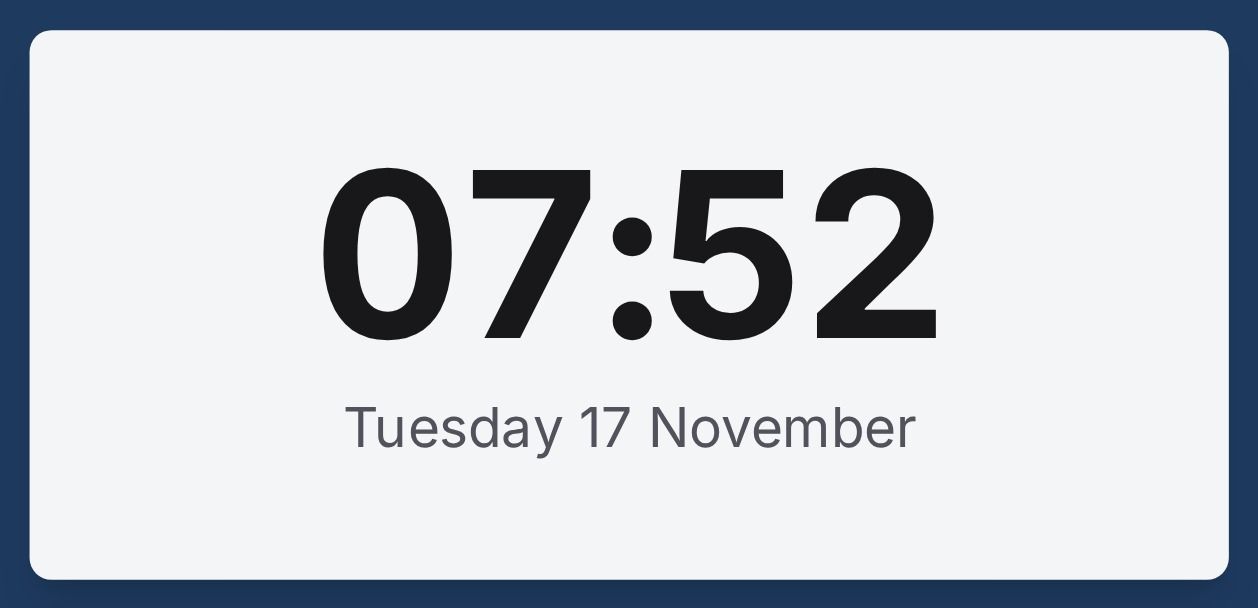
Analogue or digital
Switch between hands and digits whenever you like.
Next to the schedule
With the clock and the lesson schedule on the same board, students see both the time and what is happening now.
Learn the clock
When the class is learning to tell the time: choose Learn the clock and drag the hands yourself. The time is shown in digits and in words, like "twenty-five past three", and you can hide the answer so the class answers first.
Bell times
Enter your school's lesson times once under Bell times and the clock shows what is on: "Lesson ends 09:00 · 12 min left" or "Break until 09:10". The times are saved on your account and work in all your lessons.
Ways to use it
- An analogue clock next to the schedule helps students practise reading it every day.
- Learning to tell the time: hide the digits and words in Learn the clock, set a time and let the class say it first.
- Switch to digital when what matters is that everyone reads the time quickly.
- Make the clock large during tests, so everyone sees how much time is left.
How to get started
- Add Clock.
- Choose analogue, digital or Learn the clock.
- Make it as large as you like.
Everything is on the same board: lesson schedule, timer, mini whiteboards and the other tools. No student accounts, and boards and images are stored in Sweden, under GDPR.
Questions
Can students move the hands themselves?
Yes. Choose Learn the clock, select the clock and press Share only this. Students type the code at app.pekpinne.se/k and move the hands on their own screen without changing the board. To practise reading times there is also the What time is it? widget.
Can the clock show when the break starts?
Yes. Select the clock, press Bell times and enter the lessons. The time between two lessons is a break, and the last five minutes of a lesson stand out.
Missing something? We build what teachers ask for.
Tell us what you miss on the board or what is awkward. We read everything and reply.
Used in the lesson together with
- What time is it?Practise telling the time with the whole class: o’clock, half past, quarters and five minutes. Show the answer with a tap and move on to the next.
- Lesson scheduleShow the steps of the lesson on the board. The schedule follows the clock, highlights the current step and tells you if the lesson runs too long.
- Visual timerA large visual timer seen from the back of the classroom. Count down a work session, the whole lesson or the time until break, with work mode and sound.
Plan the whole lesson on the same board
Put the tool where it belongs in the lesson, next to the lesson schedule and the timer. The next lesson in the series is one click away.