
Flip cards
Flip cards for the whole class
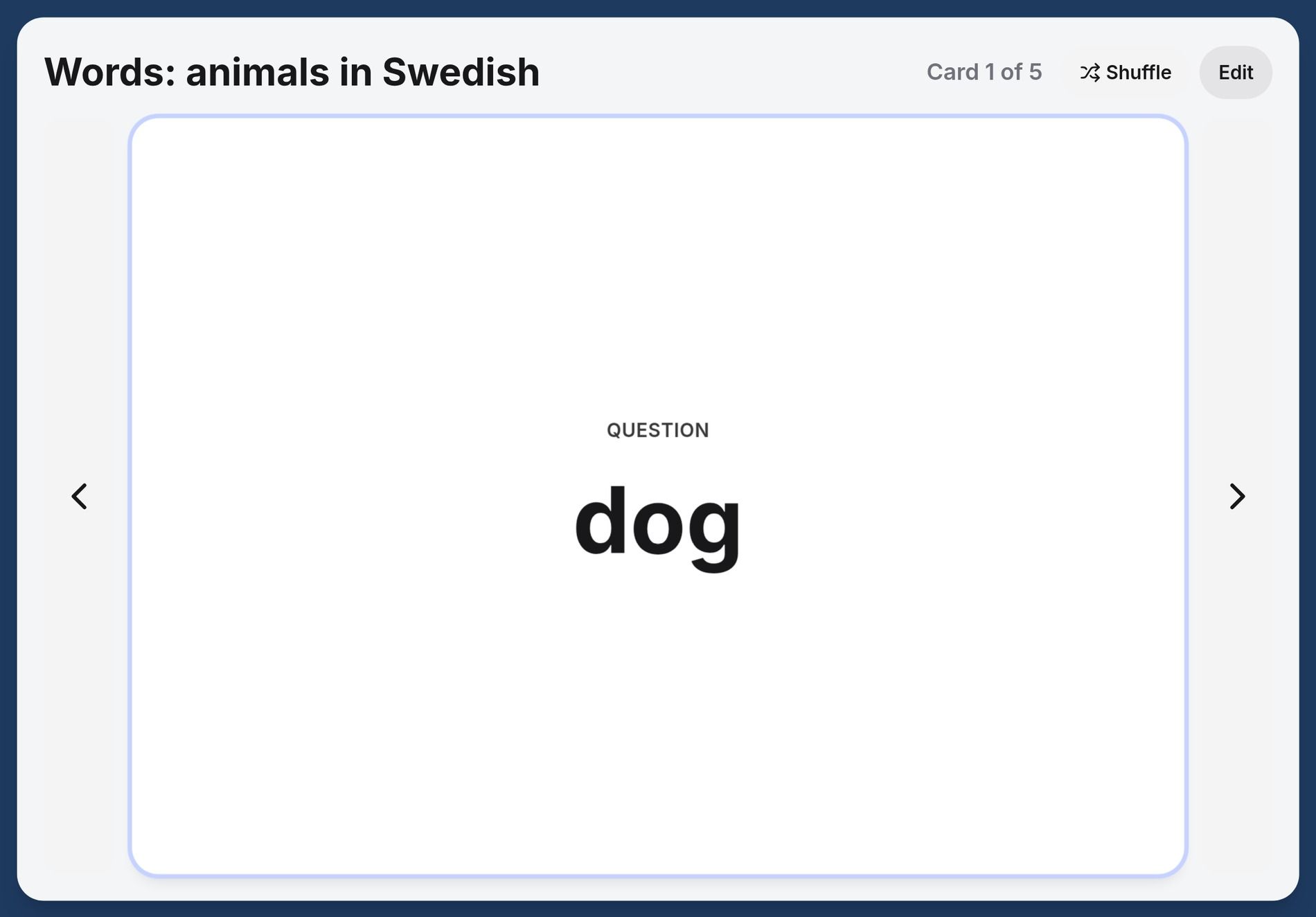
One big card at a time on the board. The class thinks, you tap, and the card turns and shows the answer.
Paste the whole list
Type the cards one by one, or paste a list with one card per line, like “hund: dog”. Two columns from Excel work too.
Say the answer before you turn
The class says the answer out loud first. Then you tap the card to turn it. The arrows take the next card and Shuffle gives a new order.
The same card on the projector
The projector shows the same card as you and turns when you turn it.
Ways to use it
- This week’s words in a language: the word on the front, the translation on the back.
- Review before a test: a question per card, the class answers on their mini whiteboards before you turn it.
- Start the lesson with five cards from last week.
How to get started
- Add Flip cards.
- Type or paste the fronts and backs.
- Tap the card to turn it.
Everything is on the same board: lesson schedule, timer, mini whiteboards and the other tools. No student accounts, and boards and images are stored in Sweden, under GDPR.
Questions
How many cards fit?
Up to 40 cards in a deck: a week of words or concepts.
How is it different from Match up?
In Match up students connect all the pairs themselves. Flip cards show one card at a time to the whole class, like a quick quiz or review.
Can students practise on their own?
Yes. With the student code a student presses Try it yourself and goes through your cards at their own pace on their screen. The student says the answer, turns the card and taps Knew it or Not yet. A card is done when the student has known it in two rounds. Nothing is sent to us and the board does not change.
Missing something? We build what teachers ask for.
Tell us what you miss on the board or what is awkward. We read everything and reply.
Used in the lesson together with
- Match upType concepts and explanations and the explanations are shuffled. Students connect them on the board or on their own device.
- NoteWrite instructions, today's goal or a task on a note, or a big welcome line with Text box. Bold, italic, text size, colours and mathematical symbols.
- Maths sprintTimes-table questions from the tables you choose, one at a time on the board. The answer shows after a moment or when you tap.
Plan the whole lesson on the same board
Put the tool where it belongs in the lesson, next to the lesson schedule and the timer. The next lesson in the series is one click away.